Short answer
For product photography on a white background, the background should be pure white, #FFFFFF (RGB 255, 255, 255), not the light grey a camera records when it photographs white paper. Amazon requires pure white for the main image; eBay, Etsy and Shopify recommend a clean, consistent background. Shoot the product, cut it out, place it on pure white at full size, then crop, pad and resize for each marketplace.
Product photography on a white background looks simple and is fiddly in practice: the white is never quite white, the edges pick up a grey fringe, and each marketplace wants a different shape and size. This guide covers what Amazon, Etsy, eBay and Shopify share, where they differ, and an order of work that gets one photo to all four without reshooting.
The core of it is one number. Pure white is #FFFFFF, or 255, 255, 255 in RGB. A photo of a product on white paper is almost never that. Everything else in this guide is about getting there and then fitting the picture to each shop.
Why a white background for product photos at all
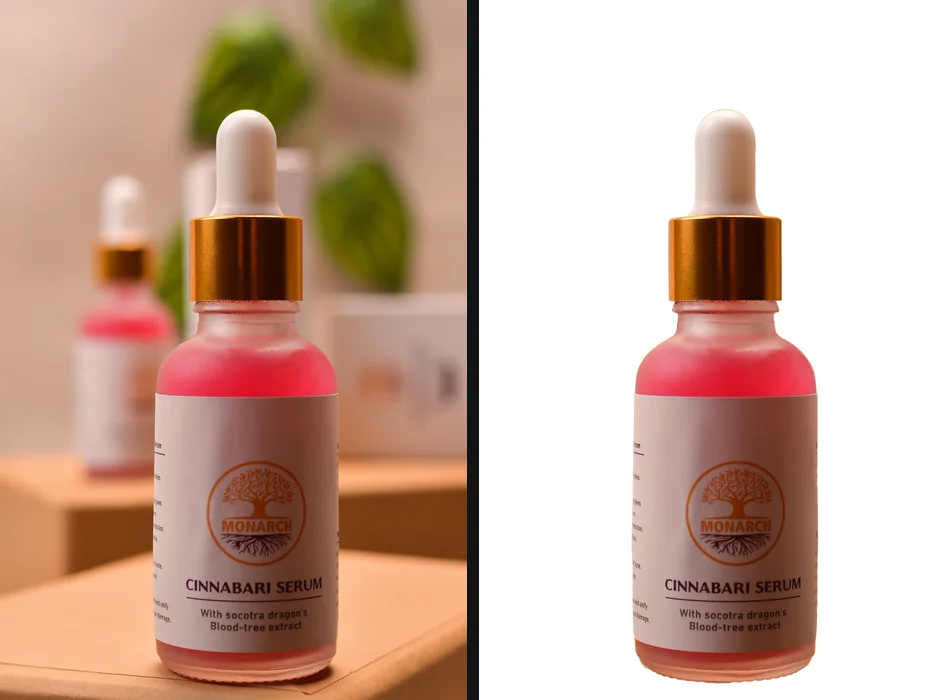
A marketplace search page is a grid of small pictures of similar things. On white, every product in that grid is judged on the same terms: its shape, its colour, its detail. On a kitchen table or a patterned rug, the background competes with the product and the grid looks messy.
That is the reason Amazon gives for its rule, and it is why the others recommend white without requiring it. It also has a practical side: a product on white can be dropped onto any page, banner or email with no visible box around it, as long as that page is white too.
White is not always the best answer. eBay’s own photo tips say a darker background can work better for shiny or reflective items like jewellery, because a polished surface reflects the white and loses its edges. And for your own Shopify store, a consistent soft colour can be a brand choice. But for a marketplace listing, white is the safe default.
Pure white versus off-white
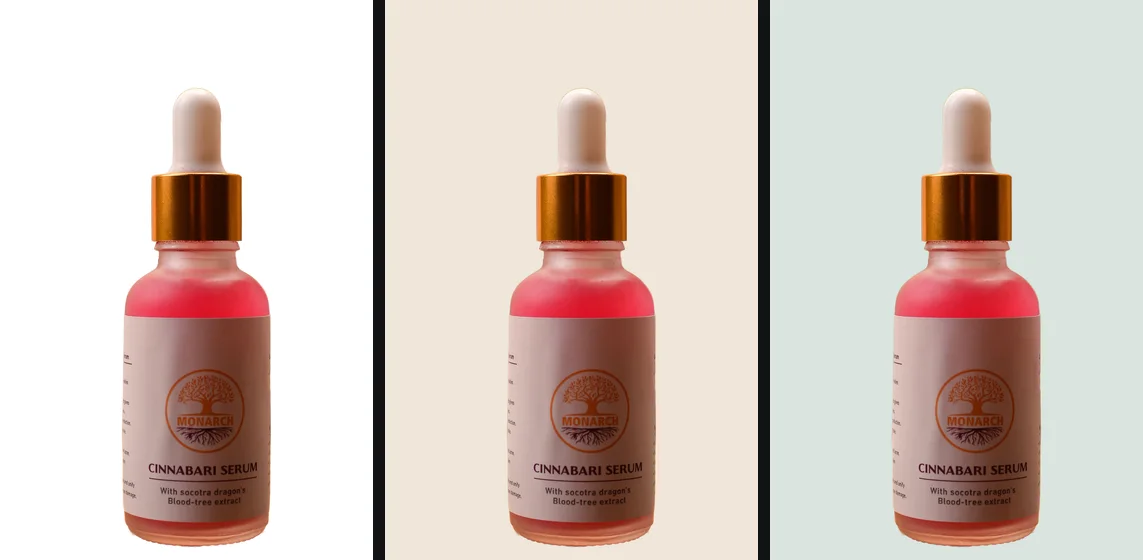
Here is the difference that trips most sellers up.
A camera sets its exposure for the whole scene. When most of the scene is white paper, the camera makes it middle-bright, so the paper records as a light grey, usually in the 230s or 240s, and brighter near the light than in the far corner. To the eye it looks white. To a colour picker, and to Amazon’s checks, it is not.
There are two ways to reach true white:
- Overexpose in the camera or in editing until the background clips to 255. This works for dark products. For a white, cream or pastel product it also clips the product itself, so its edges disappear into the background and its colour goes wrong.
- Cut the product out and place it on white. The product keeps its real exposure and colour, and the background is exactly 255 everywhere, corner to corner.
The second way is what professional retouchers call a clipping path or a mask, and it is what a background remover automates. Clipping path versus image masking explains the vocabulary if you are hiring the work out.
Check whether your white is really white
- Open the photo in any editor with a colour picker (Photopea in a browser tab is free and does not upload files).
- Pick the colour in each of the four corners and in the middle of the background.
You should see: 255, 255, 255 (or #FFFFFF) at every point you sample.
If you do not: the background is off-white. That is fine for Etsy, eBay, Shopify and Amazon’s additional images, but not for an Amazon main image. Cut the product out and put it on pure white.
The rules the four marketplaces share, and where they differ
All four were checked on their own help pages in September 2026. The individual guides go into each one in detail.
| Marketplace | White background | Size | Transparency |
|---|---|---|---|
| Amazon | Required for the main image (RGB 255, 255, 255) | 500 to 10,000 px on the longest side; 1,000+ for zoom | Not mentioned; send it on white |
| Etsy | Not required | 2,000 px or more recommended; first photo at least 635 px | Not supported: transparent areas show black |
| eBay | “Generally best”, not required | At least 500 px; about 1,600 x 1,600 recommended; 12 MB max | Not mentioned; send it on white |
| Shopify | Not required; keep backgrounds consistent | 2,048 x 2,048 recommended for square; 5,000 x 5,000 or 25 MP max | Supported as a file; what shows behind it depends on the theme |
Sources: Amazon Product image guide, Etsy image requirements, eBay adding pictures, Shopify product media types, all checked September 2026.
What they share, reading across those pages:
- The whole product, clearly. Amazon forbids cutting off any part of the product on the main image. eBay asks for the whole item face-on in the main photo. Etsy recommends shooting further back than you think you need so the thumbnail can be cropped.
- No added text, borders or watermarks on the main picture. Amazon forbids text, logos and watermarks on the main image; eBay forbids added borders, added text and watermarks on any listing photo. Etsy and Shopify leave it to you, but the same logic holds in a search grid.
- High resolution, not enlarged. Amazon says not to artificially enlarge small images. Etsy notes that increasing an image’s size can make it pixelated. Shoot at full resolution and scale down, never up.
- An accurate picture. Amazon asks that the image represent the real colour and scale of the product; eBay asks for photos that accurately represent the item. A cutout should change the background, not the product.
Where they differ is shape and size, which is why the last step of the work below is per marketplace.
How much of the frame the product should fill
Amazon is the only one with a number: its guide says to show the product as 85 percent of the image. The page does not say whether that is 85 percent of the area or of the longest side, and those are very different. Most sellers read it as the product’s longest side spanning about 85 percent of the frame, which leaves a thin white margin; 85 percent of the area would put the product almost edge to edge. The Amazon guide goes into this ambiguity.
For the others, the useful rule is Etsy’s: leave enough space that the picture survives being cropped. Etsy crops the first photo into square, portrait and landscape thumbnails in different places on its site. A product that fills 70 to 80 percent of a landscape or square frame survives all three.
The arithmetic for a square canvas is simple. If the product, cropped tight, is 1,700 pixels on its longest side and you want it to fill 85 percent, the canvas is 1,700 divided by 0.85, which is 2,000 pixels square.
Shadows: grounded or floating
A cutout on pure white has no shadow, so the product can look as if it is floating. A soft shadow directly under it makes it look like it is sitting on something.
None of the four marketplaces’ help pages mentions shadows. What is certain is that a shadow is not pure white, so on an Amazon main image a heavy or spreading shadow risks being read as a non-white background. If you add one, keep it faint and tight under the product. For Etsy, eBay and Shopify, a gentle shadow is a matter of taste; many shops use one on every product for consistency.
getPNG does not add shadows. Photopea can: open the transparent PNG, double-click the layer to open Layer Styles, tick Drop Shadow, and set the angle straight down with a low opacity. Put a white layer underneath before exporting.
An order of work that fits all four marketplaces
This gets one photograph to every marketplace without reshooting.
1. Photograph for the cutout
Even, soft light from a window or two lamps, no flash. The whole product in the frame with space around it. The background matters less than you think, as long as it contrasts with the product: a white mug cuts out more cleanly from a mid-grey table than from white paper, because the edge is obvious. Shoot at the camera’s full resolution.
2. Cut out the product
Drop the photo on a background remover. Use the compare view to check the difficult parts: handles, straps, the gap inside a ring, the space between a chair’s legs. If the outline sits a pixel or two inside the product, Edge shift grows it; if a thin line of the old background clings to the edge, shrink it and add a little Feather. White halos around a cutout covers the fringe problem in detail.
3. Put it on pure white, at full size
Pick white as the background and download. A PNG on white is lossless, so the background stays at exactly 255; a JPG on white is smaller. Also download a transparent PNG and keep it. That is your master for banners, social posts and any marketplace that changes its rules later.
The free way
Pure white behind the product, at the photo's full size
Drop the product photo, check the edge in the compare view, pick White and download PNG or JPG. White in getPNG is #FFFFFF, and the file keeps every pixel of the original, so a 24 megapixel photo comes back at 24 megapixels for Amazon’s zoom. An unreleased product stays on your computer.
4. Crop, pad and resize per marketplace
This is the step getPNG does not do: it has no crop, no square canvas and no resize. Free tools that do:
- Photopea (photopea.com), a free editor in the browser that states on its learn pages that it does not upload your files. Crop with the Crop tool, add white space with Image > Canvas Size, and set exact pixels with Image > Image Size, then File > Export As.
- Squoosh (squoosh.app), Google’s free image app, which says in its project page that it does not send images to a server. It resizes and compresses but does not pad to a square.
- The marketplace’s own editor. Etsy’s listing editor crops and sets the thumbnail; Shopify’s media editor crops to square and resizes; eBay’s photo editor crops. These work on the photo after it is uploaded to that marketplace.
When you pad a canvas in Photopea, start from the transparent PNG. If the new strips show a checkerboard, add a new layer, fill it with white, and move it below the product before exporting.
5. Check the white, then upload
Sample the corners with a colour picker as in the check above. For Amazon, confirm it reads 255, 255, 255 everywhere. Upload a flat JPG or PNG, not a transparent one.
When a white background does not work well
A cutout is not magic, and some products fight it.
- Glass, clear plastic and liquids. The original background shows through the product, so cutting out the background leaves the old colours inside it. These are usually better photographed on a real white sweep with careful lighting.
- White or very pale products. On pure white the edge disappears. A faint shadow helps, and so does eBay’s suggestion of a darker background where the marketplace allows it.
- Fine mesh, fur and fringes. The soft edge a good cutout keeps for hair is correct, but on pure white a mesh bag or a fringed scarf can look slightly grey at the edges. Shoot it on a light background so the soft pixels are already close to white.
- Products with many holes. A chair, a whisk, a bicycle wheel: check every gap in the compare view. getPNG has no brush to fix a single spot by hand yet, so for one stubborn gap finish it in Photopea.
- Photos from an iPhone in HEIC. getPNG reads HEIC as it is, but the first one fetches a separate decoder (about 2 MB, once), so that one needs a connection.
If you use an online tool for any of these steps, check whether it uploads the photo. For an unreleased product or a client’s catalogue that matters; is it safe to upload photos online goes through what the popular tools say they do with your files.
The steps, in short
- Photograph for the cutout, not for the white. Even light, the whole product in frame with space around it, and a background that contrasts with the product. A white mug is easier to cut out from a grey table than from white paper.
- Cut out the product. Drop the photo on a background remover and check the edge in the compare view, especially handles, straps and gaps.
- Put it on pure white. Choose white (#FFFFFF) as the background and download a PNG or JPG at full resolution. Keep a transparent PNG as well for banners and social posts.
- Crop, pad and resize per marketplace. In a free editor such as Photopea, crop close to the product, extend the canvas with white to the shape and fill each marketplace wants, and export at the recommended size.
- Check the white. Sample a corner with a colour picker. It should read 255, 255, 255. Anything lower is off-white, and Amazon treats it as a non-white background.
Questions
Why does my white background look grey in product photos?
A camera exposes for the whole scene, so white paper or a white sweep comes out as light grey, typically somewhere in the 230s or 240s rather than 255, and uneven from one corner to the other. You can overexpose until the background clips to white, but that also bleaches a pale product. Cutting the product out and placing it on true white avoids both problems.
Is off-white acceptable for Amazon?
Not for the main image. Amazon's Product image guide asks for pure white, RGB 255, 255, 255, and its image suppression page lists a non-white background as a reason to hide a listing from search. Off-white is fine for Amazon's additional images, and for Etsy, eBay and Shopify, which do not require pure white.
Should product photos have a shadow on a white background?
None of the four marketplaces' help pages we checked in September 2026 mentions shadows either way. A faint shadow under the product makes it look grounded, but a shadow is by definition not pure white, so on an Amazon main image keep it very light and directly under the product, or leave it out.
What size should a product photo on a white background be?
At least 2,000 pixels on the longest side covers all four marketplaces: Etsy recommends 2,000 pixels or more, Shopify 2,048 by 2,048 for a square image, eBay about 1,600 by 1,600, and Amazon needs 1,000 or more for zoom. Keep the full-size cutout as your master and export smaller copies from it.
PNG or JPG for a white background product photo?
Either works on all four marketplaces. A PNG keeps the white at exactly 255 because it is lossless; a JPG is smaller and is what Amazon recommends. Neither should be transparent, because a marketplace shows whatever it likes behind transparency, and on Etsy that is black.
Can I use an AI background remover for product photos on Amazon?
Yes. Amazon's rules are about the result: pure white, the whole product visible, no text or props. How the white got there is not a rule. Its guide does ask that images accurately represent the product, so do not use the cutout step to change the product's colour or shape.