Short answer
Amazon's main image requirements, from the Seller Central Product image guide (checked September 2026): a pure white background (RGB 255, 255, 255), the product filling 85 percent of the image, the whole product in frame, one unit, no text, logos, props or mannequins. Files must be JPEG, PNG, TIFF or non-animated GIF, 500 to 10,000 pixels on the longest side; 1,000 pixels or more turns on zoom.
Amazon’s product image requirements are the strictest of any big marketplace, and they are enforced by software as well as people: a main image with a grey background, a logo in the corner or a product that is too small can take a listing out of search until it is fixed. This guide sets out what Amazon’s own Seller Central pages say, where they are vague, and how to produce a main image that passes from an ordinary photo.
Everything here was checked on Amazon’s US Seller Central help pages in September 2026: the Product image guide, Technical image file requirements and Image suppression. Those pages say they apply to selling in the United States. Other Amazon marketplaces have their own versions; the rules are usually the same, but check the page for yours.
Amazon main image requirements, in plain words
The main image is the first picture on the product detail page and the one shown in search results. Amazon calls it the MAIN image, after its variant code. Every product needs at least one compliant main image. Paraphrasing the Product image guide, the main image must:
- Have a pure white background, with RGB values of 255, 255, 255. Amazon’s stated reason is a consistent look across search and detail pages.
- Show the product as 85 percent of the image. More on what that means below.
- Show the entire product. Nothing cut off at the edge of the frame.
- Show the product once. The front only, for example, not the front and back side by side.
- Show one unit, plus any accessories that come with it.
- Accurately represent the product, at its real scale, quantity and colour, as a realistic, professional-quality photo.
- Not be a placeholder, even temporarily, because the first image uploaded defines the product’s identity.
- Leave out packaging, unless the packaging is an important feature (a carrying case, a gift basket).
- Leave out props and accessories that are not included with the product.
- Not show any part of a mannequin, whether clear, skin-toned, a frame or a hanger.
And for particular categories:
- Footwear: a single shoe, facing left, at a 45 degree angle.
- Adult clothing: on a model who is standing, not sitting, kneeling, leaning or lying down.
- Clothing accessories and multipacks: laid flat, without a model.
- A few product types may use a lifestyle photo as the main image, with no text or extra logos. The guide sends you to the product page style guide for which ones.
Requirements for all Amazon product images
The additional images, which Amazon calls variants, are much freer: other angles, the product in use, details, size comparisons, lifestyle scenes. Amazon recommends at least six additional images and one video. Every image, main or not, must still:
- accurately represent the product and match its title,
- avoid nudity or sexually suggestive images,
- show children’s and baby underwear, swimwear and similar close-fitting items lying flat without models,
- carry no customer review images, star ratings, claims like free shipping, or seller-specific information,
- carry no Amazon logos, trademarks or badges, or anything confusingly similar, such as a mock “Best seller” badge.
The guide also says images with photorealistic AI-generated people must carry a metadata keyword so Amazon can add a disclosure where required. That does not apply to a real photo whose background was removed, but it is worth knowing if you use generated models.
Technical specifications: size, format and colour
| Specification | Amazon’s requirement | What to do |
|---|---|---|
| File format | JPEG, TIFF, PNG or non-animated GIF; JPEG recommended | Upload a JPEG. WebP is not on the list |
| Size | 500 to 10,000 pixels on the longest side | Aim for about 2,000 pixels |
| Zoom | Enabled at 1,000 pixels or more on the longest side | Never go below 1,000 |
| Resolution | At least 72 dpi | Irrelevant in practice for a digital file |
| Colour mode | RGB preferred; CMYK not preferred | Export in RGB |
| File name (bulk upload) | Product identifier, variant code, extension, separated by periods | B000123456.MAIN.jpg |
The technical page adds a few things that cause real upload failures: BMP, PDF, EPS, PSD and other application files are not accepted; files should have minimal compression, so save JPEGs at the highest quality; layers must be flattened; and colour should not depend on an ICC profile, because Amazon does not rely on one for display. In the file name, spaces, dashes or extra characters stop the upload.
Two more lines from the guide are worth taking seriously. Do not artificially enlarge small images: a 600 pixel photo scaled up to 2,000 pixels passes the size check and fails the image quality one, which asks for clear, non-pixelated images without jagged edges. And uploading an image does not guarantee it is shown; Amazon picks from the images of all sellers on a listing and may modify images to meet its requirements.
What 85 percent of the image means (and where Amazon is vague)
The guide’s wording is simply that the product should be 85 percent of the image. It does not say 85 percent of what. There are two readings:
- 85 percent of the longest side. The product spans most of the frame in its longer direction, with a thin white margin. This is how most sellers and photographers read it.
- 85 percent of the area. Almost impossible for most shapes: a round product in a square frame fills at most about 79 percent of the area even touching all four edges.
The first reading is the practical one. Amazon’s image suppression page lists a product too small in the image frame as a reason to hide a listing, without giving a number, so if you are unsure, fill slightly more of the frame rather than less. The whole product must still be visible, so do not crop into it.
The sums for a square canvas: crop the cutout tight to the product, take its longest side in pixels, and divide by 0.85. A product that is 1,700 pixels long needs a 2,000 by 2,000 pixel canvas. A product that is 1,000 pixels long needs about 1,176, which is just above the zoom threshold; that is a sign the original photo was too small or too far away.
Why Amazon suppresses listings for their images
The Image suppression page lists what gets a main image, and with it a listing, hidden from search. For main images: text, logos, graphics or watermarks; a background that is not pure white; a missing or incorrect image; additional items not allowed for the product type; a cropped product; the product in its packaging or with brand or swing tags; props inside, around or obscuring the product; multiple views of one product (apparel); human models on non-clothing products in certain categories; mannequins or hangers (apparel and accessories); and models not standing (apparel). For any image: blur or pixelation, the product too small in the frame, and prurient content.
Suppressed products appear in Manage Products under the Fix tab. Amazon recommends replacing a non-compliant main image rather than deleting it, and says a new image can take up to 24 hours to appear.
How to make an Amazon main image from an ordinary photo
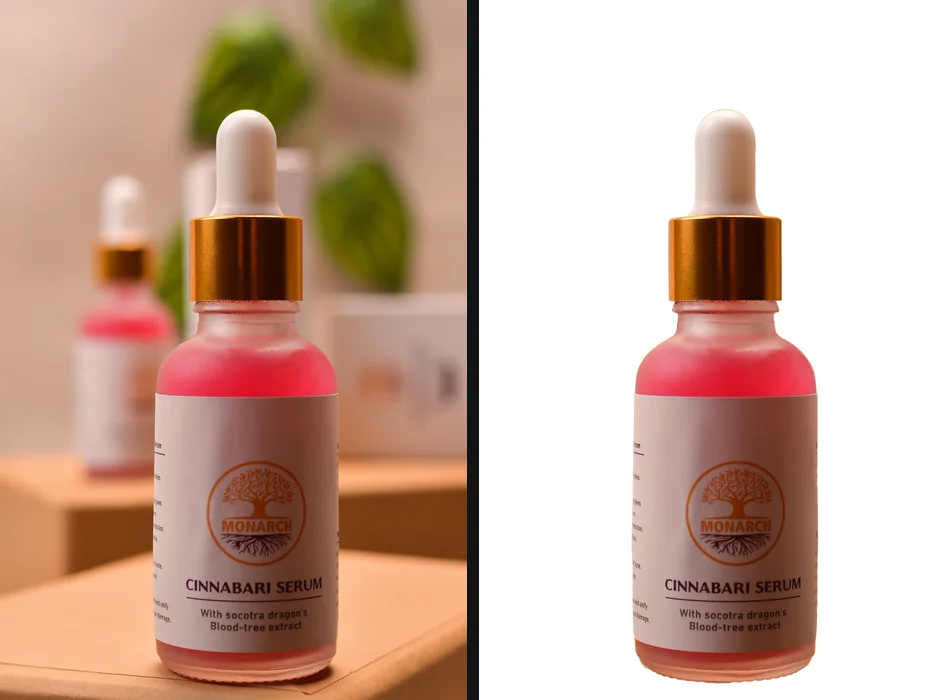
1. Photograph the product
One unit, out of its box, at the camera’s full resolution. Soft, even light and no flash. Leave space around the product; you will crop later. The background does not need to be white; it needs to contrast with the product so the edge is clear. A white product on a mid-grey surface cuts out far more cleanly than on white paper.
2. Cut it out and put it on pure white
Remove the background and choose white. Check the edges against the original, especially handles, cords and holes: a patch of the old background inside a loop is a non-white background as far as Amazon is concerned. If a thin line of the old background clings to the edge, shrink the outline a pixel or two; white halos around a cutout explains why it happens.
The free way
A pure white main image, at the photo's full size
Drop the photo, check the edge in the compare view, pick White and download a JPG or PNG. The white is exactly #FFFFFF, and the file keeps the full resolution of the original, so there is plenty to crop from and still clear Amazon’s 1,000 pixel zoom threshold. A product that has not launched yet stays on your computer.
3. Crop and pad to 85 percent
getPNG does not crop, pad or resize, so this step happens in another tool. Photopea is free, runs in the browser and says on its learn pages that it does not upload files:
- Open the cutout. Using the transparent PNG here makes padding easier.
- Crop close to the product with the Crop tool.
- Note the longest side in pixels (Image > Image Size shows it) and divide by 0.85.
- Image > Canvas Size: set width and height to that number, keeping the product in the middle.
- If the new area shows a checkerboard, add a new layer, fill it with white and move it beneath the product.
- File > Export As > JPG, at the highest quality.
If the result is larger than you need, set the final size in Image > Image Size before exporting. Scale down only, never up.
4. Name it and upload it
For a single listing, upload it as the main image in the listing’s image manager. For bulk uploads, name it with the identifier and variant code, for example B000123456.MAIN.jpg, with periods and nothing else between the parts.
Check the image before you upload
- Open the exported JPEG in Photopea or any editor with a colour picker.
- Sample all four corners and a point close to the product’s edge.
- Check the pixel size of the image.
You should see: 255, 255, 255 at every sample, the longest side at 1,000 pixels or more, and a white margin on each side that is small relative to the product.
If you do not: if a corner reads 254 or lower, the background was not pure white: re-export it on white from the cutout rather than brightening the photo. If the image is under 1,000 pixels, the original photo was too small; reshoot rather than enlarging.
When this does not work
- Transparent and reflective products. Glass, clear bottles and chrome show the old background through or in them. A cutout removes the background around the product but not what is seen through it. These are best photographed on a real white sweep with controlled light.
- Apparel on a model. Cutting out a standing model works, but hair and loose fabric are the hardest edges there are. Check them closely in the compare view, and remember a seated model fails regardless of the background.
- Products with packaging tags. Removing the background does not remove a swing tag or a price sticker; Amazon’s suppression list includes both. Take them off before the photo.
- Photos from an iPhone. getPNG reads HEIC, so drop the photo as it is. The first HEIC fetches a separate decoder (about 2 MB, once), so that one needs a connection.
- One stubborn spot. getPNG has no brush for fixing a single area by hand yet. For a gap that stays filled, finish it with a layer mask in Photopea.
For what the other marketplaces want, see product photos on a white background, which compares Amazon with eBay, Etsy and Shopify. If you are weighing up an online remover that uploads your photos, is it safe to upload photos online covers what the popular ones say they do with them.
The steps, in short
- Photograph the whole product. One unit, out of its packaging unless the packaging is part of the product, at full camera resolution, with space around it.
- Cut it out and place it on pure white. Remove the background and set it to white, #FFFFFF, at full resolution. Check handles and gaps in a compare view.
- Crop and pad to 85 percent. Crop close to the product, then extend the canvas with white so the product's longest side is about 85 percent of the frame. A square canvas is the common choice.
- Export a JPEG of at least 1,000 pixels. RGB, highest quality, no layers. 2,000 pixels on the longest side gives zoom room without huge files.
- Name and upload it as the MAIN image. For bulk upload, name the file with the product identifier and the MAIN variant code, for example B000123456.MAIN.jpg.
- Check it was accepted. Allow up to 24 hours, then look in Manage Products under the Fix tab for any listing removed from search for image issues.
Questions
Does the Amazon main image have to be pure white?
Yes. The Product image guide asks for a pure white background with RGB values 255, 255, 255, and the image suppression page lists a background that is not pure white as a reason to hide a listing from search. A small number of product types may use a lifestyle main image; the guide points to category style guides for which ones.
What does 85 percent of the image mean on Amazon?
Amazon's guide says to show the product as 85 percent of the image and does not define it further. Most sellers read it as the product's longest side spanning about 85 percent of the frame. Since the suppression list includes a product that is too small in the frame, err on the side of filling more rather than less.
What size should Amazon product images be?
Between 500 and 10,000 pixels on the longest side; images under 500 pixels cannot be uploaded. Amazon recommends 1,000 pixels or more, which enables zoom on the detail page. A square image of 2,000 by 2,000 pixels is a sensible target: comfortably above the zoom threshold and not so large that uploads drag.
Can I upload a transparent PNG to Amazon?
PNG is an accepted format, but Amazon's pages do not say what it shows behind transparent pixels, and the main image rule is about a pure white background. Put the product on white yourself and upload a flat JPEG or PNG, so there is nothing for Amazon to decide.
Does Amazon accept WebP images?
Not according to the Product image guide checked in September 2026, which lists JPEG, TIFF, PNG and non-animated GIF as supported formats, with JPEG recommended. Save a JPEG or PNG instead.
Why was my Amazon listing suppressed for its image?
The image suppression page lists the common reasons for main images: text, logos or watermarks; a non-white background; missing or cropped product; packaging or tags; props; extra items; blur or pixelation; the product too small in the frame; and, in apparel, mannequins, hangers or seated models. Replace the main image rather than deleting it, and allow up to 24 hours.
Can the main image show a shadow?
Amazon's guide does not mention shadows. A shadow is not pure white, though, so a large or spreading one risks the non-white background rule. If you want the product to look grounded, keep any shadow faint and directly beneath it.