Change the background colour of a photo
Black, blue, grey, your brand colour or any hex value, behind any subject, at full resolution. Free, and the photo never leaves this device.
How to change a background colour
- Drop the photo. The AI cuts out the subject and shows it on blue to start with.
- Pick a colour in the Background panel, which sits at the top on this page: White, Black, Mint, Sky, or the last swatch, which opens a colour picker for any exact colour.
- Try a few. Changing the colour is instant, because the cutout is made once. Edge shift and Feather are instant as well.
- Download. JPG for a photo on a solid colour, PNG for artwork or text, WebP where it is accepted. The file keeps the size of the original.
Which colour works for what
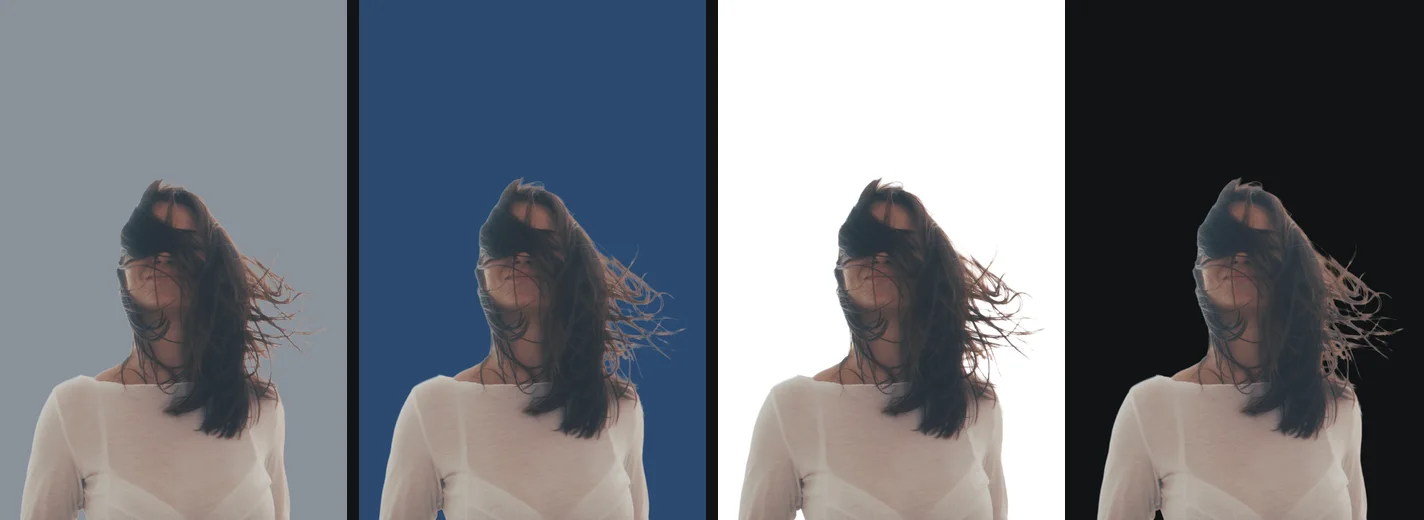
Grey is the safe choice for headshots and team pages. A mid grey flatters most skin tones, keeps contrast with both dark and light hair, and does not fight with a website's own colours. Blue, muted rather than bright, reads as calm and corporate and is common on LinkedIn and conference speaker pages. Black is dramatic and makes colourful products and light subjects glow, but it swallows dark hair and dark clothes, so check the outline against it before you commit. White suits catalogues and profile pictures shown on white pages; the white background page starts on pure white.
Bright colours are for attention: a YouTube thumbnail, a sale banner, an Instagram story. A saturated background that is the opposite of the subject's main colour on the colour wheel, orange behind a person in blue for example, is the simplest way to make someone stand out at thumbnail size. A YouTube thumbnail with a cutout goes further, and professional headshot backgrounds covers faces in depth.
Using an exact brand colour
The last swatch in the Background panel opens your system's colour picker. On most systems you can type a hex value such as #1F6FEB directly, or pick a colour from the screen. The file is saved on exactly that colour, which matters when a set of photos has to match a website or a slide template. Keep a note of the value: getPNG does not remember it between visits.
Profile pictures and headshots
A consistent colour behind every photo is what makes a team page look like one shoot even when the photos were taken in ten different offices. The same trick works for your own profiles: one colour on LinkedIn, Slack and a conference badge makes you recognisable across all of them. The LinkedIn profile picture guide covers the background together with the crop and size, and profile picture backgrounds covers Discord, Slack and gaming avatars, including which of them keep transparency.
getPNG changes the background but keeps the photo's own shape, so crop to a square afterwards if the platform asks for one. Most profile upload forms let you crop while uploading.
When the edge shows against the new colour
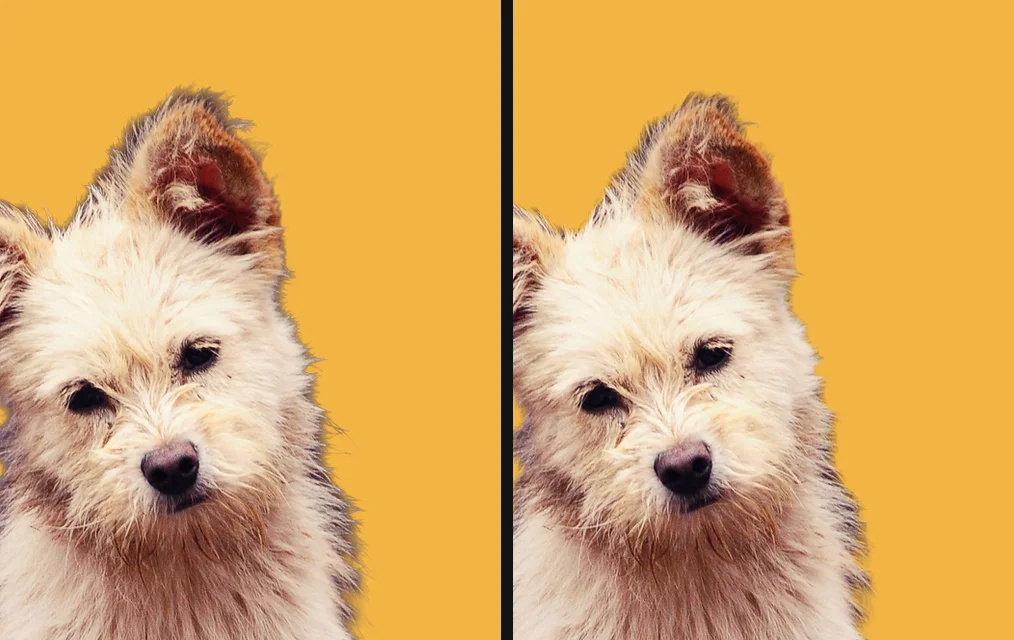
A new colour exposes what the old background left behind: a pale rim from a white wall shows on black, a dark rim from a dark room shows on white. Move Edge shift one pixel below zero, and add a pixel of Feather if the outline looks too hard. Hair is where it shows most, because single strands are partly the old background. A mid-tone colour close to the brightness of the original background hides the most. White halos and jagged edges explains why.
Every step happens in your browser. The photo is not uploaded, so you can try twenty colours on a photo of a client, a child or an unreleased product without it ever reaching a server.
Guides that go further
Part of cutouts for a purpose. Tested steps, the rules each place sets, and what to do when a cutout is not right.
- Headshot background: the best colour, and whyThe best headshot background colour: grey, blue, white, black or office blur, matched to hair, clothes and use. Change yours free without uploading it.
- LinkedIn profile picture: background, crop and sizeLinkedIn profile picture rules checked September 2026: 400 x 400 minimum, 8 MB, PNG or JPG, face at 60%. How to fix a messy background for free.
- Profile pictures with a transparent or coloured backgroundA free PFP maker workflow: a transparent PFP or a bold coloured background for Discord, Slack and more, with circle crops and when transparency survives.
- YouTube thumbnails with a cutout of yourselfMake a YouTube thumbnail with a cutout of yourself on a bold colour: YouTube's size and file rules checked September 2026, and a free thumbnail maker workflow.
- Which photo background for which use: shops, profiles, IDs and moreWhich photo background to use for Amazon, Etsy, eBay, Shopify, LinkedIn, passports, thumbnails and stickers, with each rule checked at its source.
- White halo or jagged edges around a cutout: why it happens and how to fix itWhy a cutout gets a white halo or jagged edges, and how to fix it: shrinking the edge, feathering, and colour decontamination in Photoshop, Photopea and GIMP.
Questions
How do I change the background colour of a photo?
Drop the photo on this page. When the cutout is ready, pick White, Black, one of the other swatches, or any colour from the colour picker. Download JPG, PNG or WebP on that colour.
Can I use an exact brand colour?
Yes. The last swatch opens your system colour picker, where you can type a hex value. The file is saved on exactly that colour.
Which format should I save a coloured background in?
JPG for photos on a solid colour, because it is the smallest file. PNG if the picture has text or flat artwork. WebP when the place you are uploading accepts it.
Does changing the colour run the model again?
No. The cutout is made once, and the background, Edge shift and Feather all change instantly on top of it.
What colour background is best for a headshot?
A mid grey or a muted blue works for most faces and on both light and dark websites. White suits profiles on white pages; black suits dramatic portraits but hides dark hair.
Your photo never leaves this device
The AI runs in your browser, so there is no server that could receive the picture. You can check it: open the network tab while the background is removed, or switch the browser to offline after your first picture and remove another. How to check a site is not uploading your photos.