Short answer
To remove the background from a signature, sign in dark ink on plain white paper, photograph it flat and in even light, cut it out, and download a PNG at the full size of the photo. The strokes of a pen are a few pixels wide, so the edge is the whole picture: keep it soft, because a hard on or off edge turns a curved line into a staircase. Check the result on a white and on a dark preview, crop it tight, and place it at the size it will be used. A pasted picture of a signature is not a legal signature in every place, so ask whoever wants it.
A signature on paper is the thinnest subject a background remover is ever given. It is a line a few pixels wide, in one dark colour, on a flat pale page, and the whole picture is its edge. If that edge is soft and true, the signature looks like pen on whatever it is placed on. If it is hard, you get a staircase on every curve and a pale halo on anything darker than the paper. This page is about getting the first result and avoiding the second.
A word first on what getPNG does and does not do for a signature. It cuts a subject out of a photograph, at the full resolution of the photo, and keeps the soft edge. It does not draw a signature, trace one into a vector or add one to a document: for those, a signing tool, getSVG or your word processor takes over, and the last section of this page says where. And a picture of a signature is not necessarily accepted as a signature. Whether a form takes a pasted image, a drawn one or only ink is for whoever asks for it to say, and nothing here is legal advice.
Why a signature is harder than a face
The model that finds the subject was built to find objects and people, which are large, solid and different from what is around them. A signature is none of those. It is a few hairlines, and the paper behind it is not a scene but the same flat surface the ink sits on. Two things follow.
- The subject is mostly edge. A stroke three pixels wide has no inside: every pixel of it is a boundary pixel, partly ink and partly paper. That is why a method that decides each pixel is either ink or paper gives a jagged result, and why the soft, part-transparent pixels are the part worth keeping. What a transparent background actually is explains how a pixel can be partly there.
- The result can vary. The model may keep the signature and drop the page, keep the whole page as the subject, or lose the thinnest strokes. That is not a fault in your photo, and it is why the test further down is worth thirty seconds before you rely on the result.
Hair is the same problem on a smaller scale, and what works for hair works here: a high-resolution photo and a soft edge.
Step 1: sign for the camera, not for the form
Most bad signature cutouts are decided at the desk, before the photo.
- Plain white paper. No lines, no grid, no watermark, no texture. Anything printed on the page is a second subject the model has to decide about.
- A dark pen, a thick one. Black or dark blue gives the most contrast against the paper. A felt tip or a thick gel pen makes a stroke that is wider in pixels, and every extra pixel across a stroke is a pixel of clean edge. A fine ballpoint at a pale pressure can fall apart into dots.
- Sign larger than usual. You will shrink it later, and shrinking is safe where enlarging is not. A signature that is twice as big on the page has twice as many pixels along every stroke. DPI explained has the arithmetic.
- Sign several times. Pick the best, the one with the cleanest curves and no lifted pen. It is quicker than repairing one afterwards.
Step 2: photograph it flat and in even light
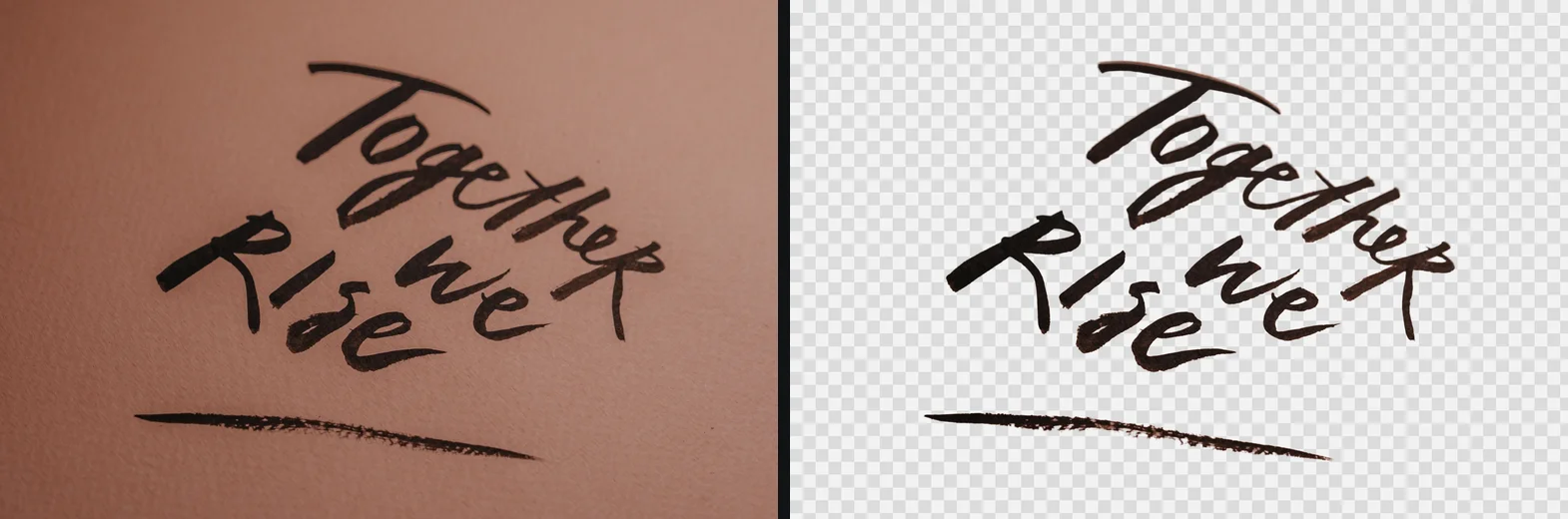
Brush lettering is the nearest relative of a signature in the sample set: dark ink on paper, with a soft edge that has to survive. The picture shows what the aim looks like. The paper is gone and the ink is left with its own edge.
- Parallel to the page. Hold the phone directly above, not at an angle. A signature photographed from the side is a squashed signature.
- Fill the frame. Walk closer rather than zooming, so the signature takes up most of the photo with a little margin.
- Daylight, no flash. Flash puts a bright spot on glossy paper, and a shadow of your hand or the phone across the line is read as part of the ink. Stand so the light comes from in front of the page and over your shoulder, not from behind the phone.
- Sharp. Tap the signature to focus, hold still and zoom in on the photo to check the thinnest stroke.
- Flat. Press the paper flat under something. A curled page changes the width of a stroke from one end to the other.
A scanner does all five of those by default, so if you have one, use it. A scanning app on a phone, which finds the edges of the page and flattens it, is the next best thing.
Step 3: cut it out
- Open getPNG and drop the photo on the page, choose it, or paste it.
- The model finds the subject, and the edge is fitted to the real pixels of the full-size photo, so the cutout follows the pen and not a blurred, enlarged mask.
- Look at the preview on white, then switch it to black or a strong colour, and open the compare view to see the original beside the cutout.
If the whole page came out as the subject, crop the photo to the signature in an editor and drop it again. A close crop leaves the model less paper to decide about, and it makes the pen a larger share of what it sees.
Find the broken stroke before the document does
- Set the preview background to black, or to a strong colour that is not in your signature.
- Zoom in until you can see single pixels along the longest curve, the cross of any t, the dot of any i and the tail where the pen lifts.
- Look at every place the stroke crosses itself or is at its thinnest.
You should see: the stroke is continuous, its edge is soft rather than stepped, and nothing but ink shows against the strong colour.
If you do not: a gap in a stroke is a thin part the model dropped: paint it back with the brush, which works at the picture’s own pixels, or sign again with a thicker pen. A pale tint along the edge is paper colour, and the next section deals with it.
Keep the ink soft
The controls for a hair edge are the wrong ones to reach for on a signature, in two cases.
- Feather stays at zero. Feather softens the edge, and a signature is made of edge. More of it blurs the stroke and makes the signature look out of focus.
- Edge shift stays at zero or goes slightly out. A negative shift shrinks the cutout, and on a stroke three pixels wide a shrink of one or two pixels eats most of the line. Growing it a pixel thickens the ink a little, which is sometimes right for a pale pen. The range is up to five pixels, and a signature wants a fraction of that.
- Leave Clean edge colour working. The soft pixels along a stroke are part ink, part paper. Without the clean-up they keep a share of the paper colour, which shows on a dark background as a pale rim. With it, the paper is taken back out, and what is left is the colour of the ink. White halos and jagged edges after a cutout goes through the cause.
All three apply at full resolution, and the model does not run again, so move a slider and look at the edge straight away.
Never threshold the result in another editor afterwards. A tool that turns every pixel above some level fully solid and the rest fully clear produces exactly the staircase this page is trying to avoid. If the cutout is going through an editor on the way to its place, keep it as a PNG and keep it soft.
The ink colour decides where it can go
Dark ink on a transparent background is dark ink on whatever the page is. That is the right result and an awkward one.
- On a white or pale page, it is exactly what you want.
- On a dark page, a photo or a coloured box, black ink all but vanishes. This is the one real use for a second file: a copy of the signature in white or a pale colour, made in an image editor. getPNG cuts out and places a subject on a colour, but it does not recolour the ink.
- On a page with a pale tint, a signature that is not quite black, such as dark blue, is fine on it and looks as if it was written there.
If a signature that is meant to be black looks grey on the page, check that it is not the compare view at a small size, and that the PNG is not being shown at a fraction of its pixels in the document, which is what makes a thin line look pale.
Step 4: save a tight PNG
Choose the crop around the subject in the sizes panel, so the file is the signature and not a page with a signature in the middle. A tight crop is easier to place and easier to centre on a signature line, and it avoids the invisible margin that makes a pasted picture sit too high or too low.
Download a PNG, not a JPG. A JPG cannot hold transparency, and it would paint the transparent area a solid colour, usually white, which is a white box on any coloured page. If a picture of your signature shows a checkerboard in a document instead of showing the page behind it, it is a painted checkerboard and not real transparency; the fake transparent PNG guide shows how to tell.
Keep the file at the full size the photo gave you, and shrink it in the document. The reverse does not work: a small signature placed larger gets soft, and nothing in the document brings the sharpness back.
Place it
Where the PNG goes decides what is left to do.
- A word processor. Insert the picture, set it to sit in front of the text or on its own line, and shrink it to the size of a signature on a printed page. Making a picture transparent in Word covers the Word-specific parts.
- A PDF. Most signing and PDF tools accept a PNG for the signature, and a transparent one lets the line underneath show through, which a white-boxed one does not.
- An email signature. Keep it small. A signature image in an email is a picture of a signature, not a thing that signs the mail.
- Print. A signature that will be printed needs the pixels for its printed size, and a signature scanned or photographed larger than you need has them.
Keep it to yourself
A signature is one of the few pictures that has a use if it gets out. Treat the PNG as you would a card number.
- Do not post it publicly or put it on a website or in a shared folder with a long list of people.
- Keep the original photo as well as the PNG, in the same private place, so you can make another without signing again.
- Think before you upload a signature to a service. getPNG processes the photo in the browser tab and sends it nowhere. Is it safe to upload photos online covers what other tools do with a picture.
The free way
A signature cutout, made on your own device
Drop the photo of your signature, check it on a dark preview, keep the edge soft, choose the tight crop and download a transparent PNG at the size of the photo. Nothing is uploaded, and there is no watermark.
When this route does not work
- A very pale or very fine pen. Pencil, a light grey gel pen or a fine ballpoint leave too little contrast for the model to tell ink from paper. Sign again with a darker and thicker pen.
- Lined or printed paper. Lines under the signature often come out as part of it. Sign on plain paper, or cut the lines out in an editor.
- A signature on a screen. A pen on a tablet is a different job: most signing apps already save a PNG with a transparent background, and a screenshot of one carries the screen with it.
- A signature you need as a vector. A signature for a stamp, a seal or a large print is a shape, and a vector keeps it sharp at any size. A clean transparent PNG from this page is a good input for getSVG’s PNG to SVG, which turns it into editable paths.
- A signature you do not have the right to use. Cutting out somebody else’s signature from a document does not make it yours to use, and this page is for your own.
For the general routes to a transparent PNG, including turning a flat white background into transparency in an editor, see how to make a transparent PNG. For logos on paper, walls and shirts, a logo photo to a transparent PNG covers the same ground with a hard-edged subject.
The short version
Sign big, in a dark thick pen, on plain white paper. Photograph it flat, in even daylight, close enough that it fills the frame. Cut it out, check it on a dark colour, keep Feather at zero and the edge soft, and fill a stroke that has broken with the brush. Save a tight PNG at full size, shrink it in the document, and keep a pale copy for dark pages. The soft edge is the signature; everything else is a way of not losing it.
The steps, in short
- Sign on plain paper. Use unlined white paper and a dark pen, black or dark blue. Sign larger than you would on a form, because more pixels along each stroke gives a cleaner edge.
- Photograph it flat and in even light. Hold the phone parallel to the page, close enough that the signature fills most of the frame, in daylight with no shadow of your hand or the phone across it.
- Drop the photo on getPNG. The cutout is fitted to the full-size photo, so every pixel of the pen stroke is kept.
- Check it on white and on a dark colour. A leftover paper tint shows on the dark preview, and a thin or broken stroke shows on both. Leave Edge shift and Feather at zero or close to it.
- Download a tight PNG. Choose the crop around the subject so the file is the signature and not the page, then place it in your document at a smaller size than the file.
Questions
How do I remove the background from a signature?
Sign on plain white paper in a dark pen, photograph it flat, drop the photo on getPNG and download the transparent PNG. Check it on a dark preview before you use it, because a pale tint left from the paper shows there and not on white. If a stroke is broken, paint it back with the brush or sign again with a thicker pen.
Why does my signature look jagged after the background is removed?
Almost always the edge was made hard: every pixel is either ink or nothing, so a curve becomes steps. A pen stroke should have soft, part-transparent pixels along both sides. Keep Feather at zero, do not shrink the cutout with Edge shift, and work from a photo taken closer, so each stroke is wider in pixels.
Should I use a scanner or a photo?
Either works. A scan is flat and evenly lit by default, which is exactly what a signature needs. A phone photo works if you hold the phone parallel to the page, in daylight, with no shadow. What matters is that the signature is sharp and has no shadow across it.
Why is my signature invisible on a dark document?
Dark ink on a transparent background is dark ink on a dark page. The PNG is correct and the contrast is not. Keep a second copy in white or a light colour for dark backgrounds, made in an image editor, or place the signature on a light box in the document.
Is a picture of my signature a legal signature?
That depends on the place and on what is being signed, and this page cannot say. Some forms accept a pasted image, some want a signature drawn in a signing tool, and some want ink on paper. Ask whoever is asking for the signature what they accept.
Is my signature uploaded when I remove the background?
No. getPNG runs in your browser, so the photo is never sent anywhere. That is worth having for a signature, which is one of the few pictures you would rather nobody else held a copy of.