Short answer
The quickest PFP maker is a background remover plus a square canvas. For a transparent PFP, cut yourself out, save a PNG and place it on a square with margin so the circle crop does not clip your head. Some platforms keep the transparency and show their theme colour behind you; others flatten it to white or black. For a picture that looks the same everywhere, use a solid colour profile picture background instead.
A free PFP maker does two things: it cuts you out of a photo and puts something better behind you. A PFP (profile picture) with a transparent or bold coloured background stands out in a member list full of kitchen selfies, and it is quick to make: cut yourself out of a photo, decide what goes behind you, and make the picture square so the circle crop does not clip your hair. The part that surprises people is transparency. A transparent PNG looks great on one platform, turns into a black square on another, and changes when someone switches to dark mode. This guide covers how to make a transparent PFP or a coloured one, how circle crops work, what the platforms say about sizes, and how to tell what a site does with transparency before you rely on it.
Transparent PFP or coloured background: which to choose
Both start from the same cutout. The difference is what fills the space around you.
A transparent PFP lets the platform’s own background show through. On a site with a dark theme you appear on dark grey; in light mode, on white. When it works, it looks like you are standing directly on the page, which is striking in a list of rectangles. It has two risks: the platform may flatten the transparency to a colour it chooses, and a cutout that looks clean on white can show a pale fringe on black.
A solid colour background looks exactly the same everywhere, in every theme, in every app that shows your picture, and after any conversion. It is the right choice for work tools and any site you have not tested. A bold flat colour (teal, orange, violet, yellow) gets most of the “stands out” effect of transparency with none of the risk.
A practical rule: use a colour unless you have checked the platform keeps transparency, and even then keep the coloured version ready.
How to make a transparent PFP (a free PFP maker in two tools)
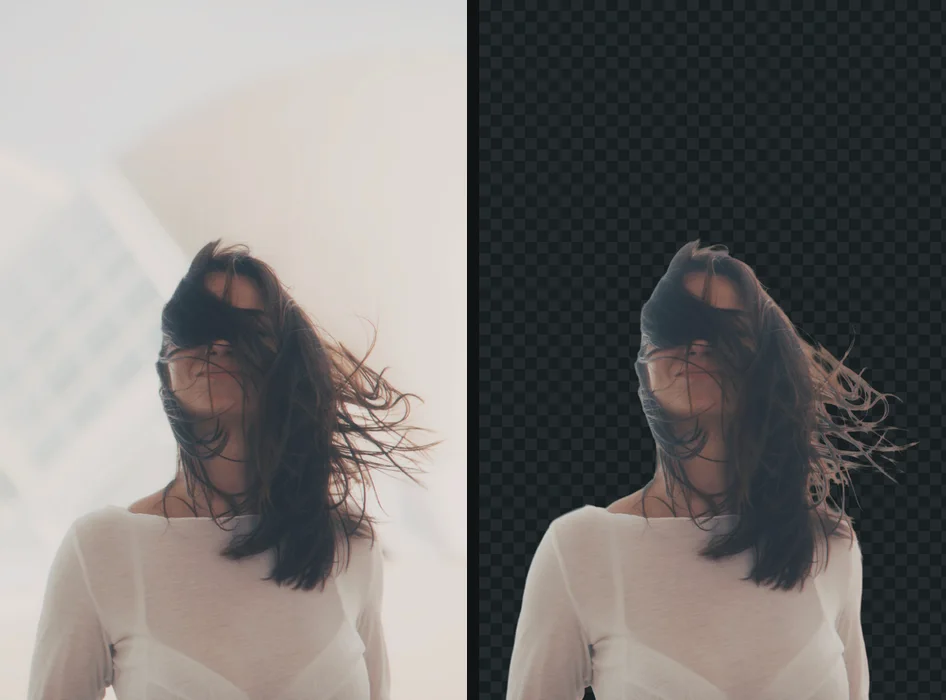
1. Choose the photo
A head-and-shoulders photo with space around you. Profile pictures are shown as circles on most platforms, and a circle inside a square loses the corners. If your hair touches the top of the photo or your shoulders fill the width, the crop has nothing to spare. A photo with a clear outline (hair in focus, some contrast with the background) also gives a cleaner cutout.
If the photo is from an iPhone and saved as HEIC, there is no need to convert it. getPNG reads JPG, PNG, WebP, AVIF, GIF and BMP, and HEIC too.
2. Remove the background
Drop the photo on getPNG, choose it, or paste it. The model finds you, then the edge is refined against the full-size photo, so the outline follows your hair at the resolution of the original rather than an enlarged, blurry mask.
3. Check the edge on light and dark
This is the step that makes transparent PFPs look good. Switch the preview background between white and black. On white you will not notice a faint pale fringe from a bright old background; on black it glows. On black you will not notice a dark fringe; on white it looks like a pencil outline.
If you see a rim, use Edge shift to pull the outline in by one or two pixels. If the edge looks cut out with scissors, add a little Feather. Both are instant and do not run the model again. The compare view, with the original beside the cutout and a divider you can drag, shows whether hair was lost. More on fringes in white halos around a cutout.
4. Save a PNG
Download the transparent PNG. Of the formats that keep transparency, it is the one profile upload forms accept most widely. getPNG can also save WebP with transparency, which is smaller, but fewer upload forms take WebP for profile pictures; LinkedIn, for example, names only PNG and JPG. What a transparent background really is explains which formats keep transparency and which do not.
5. Make it square with margin
getPNG keeps the original dimensions of the photo and has no crop or square canvas, so this step happens elsewhere. Two ways:
- Use the platform’s own framing step. Slack, LinkedIn and most other sites show a crop or framing view after upload. Centre your face and zoom out enough that the circle clears your hair.
- Make a square in an editor. In an editor that keeps transparency (Photopea, GIMP, Figma, or Canva if you are happy for the file to be stored in your Canva account), create a square canvas, for example 1024 x 1024 pixels, and place the cutout so your face sits a little above the centre with space all round. Export as PNG. Photopea’s privacy policy (checked September 2026) says files you open in it never leave your device.
The free way
Cut yourself out for a PFP in seconds
Drop your photo on getPNG, check the edge on white and on black, and save a transparent PNG, or pick a bold colour and save it on that. Full resolution, no account, no watermark.
How to make a profile picture with a coloured background
The same cutout on a solid colour is the most reliable PFP there is.
- Remove the background as above.
- Pick a background colour. The preview updates immediately, so try several.
- Save as PNG or JPG on that colour. PNG keeps edges crisp; JPG is smaller and fine at profile sizes.
- Make it square with margin, in the platform’s framing step or an editor.
Choosing the colour. At the size profile pictures are shown (often 32 to 48 pixels in a chat list), detail vanishes and only shapes and colour remain. So:
- One flat colour beats a gradient, a pattern or a scene.
- Contrast with your hair and clothes. Dark hair on a saturated yellow or teal; blond hair on violet, navy or dark green.
- Match the tone of the place. Bright and saturated for Discord, Twitch and gaming; muted grey, blue or green for Slack and work tools, where the professional headshot background guide applies.
- Keep it consistent across your accounts if you want to be recognised: the same colour everywhere becomes part of your identity faster than the photo does.
Platform sizes and what the help pages say
Checked on each platform’s own help pages in September 2026. Where a platform does not publish a detail, the table says so rather than guessing.
| Platform | What its help page says | Transparency documented? |
|---|---|---|
| Slack | Between 512 x 512 and 1024 x 1024 pixels; adjust the framing after upload (Slack Help) | No |
| Discord | Upload your own image as an avatar; animated GIF avatars need Nitro (Discord Support) | No |
| PNG or JPG, 400 x 400 to 7680 x 4320 pixels, up to 8 MB (LinkedIn Help) | No |
None of the three documents what it draws behind transparent areas, which is why testing matters more than any list you find online: platforms change how they process uploads without announcing it. For LinkedIn in particular, the LinkedIn profile picture guide recommends a solid colour.
A square 1024 x 1024 pixel PNG is a sensible master file. It meets Slack’s range exactly, is well above LinkedIn’s minimum, and every platform scales it down.
How to tell whether a platform keeps transparency
Test a platform in two minutes
- Make a test PFP: your cutout on a transparent background, saved as PNG.
- Upload it as your profile picture on the platform.
- Look at it in the app in light mode, then switch to dark mode and look again.
- Open your profile on another device (the phone app if you used the website, or the reverse).
You should see: the colour behind you changes with the theme (white or light grey in light mode, dark grey in dark mode), which means the platform keeps transparency.
If you do not: if you see the same black, white or grey square in both themes, the platform flattened the transparency on upload; replace it with a version on a colour you chose.
Check more than one view. Some services keep transparency in the large profile view and flatten it in small thumbnails, notifications or emails, where the picture is served as a JPG. The guide to a PNG showing a black or white background explains why conversion to JPG fills transparency with a colour.
Why circle crops cut off hair
Nearly every platform shows profile pictures as a circle or a rounded square. A circle inside a square loses about a fifth of the area, all of it in the corners. With a portrait photo, the corners are where the top of your hair and your shoulders are.
- Keep the face slightly above centre. Eyes about 40% of the way down the square works for most crops.
- Leave space above the head. At least a tenth of the height of the square.
- Do not fill the square edge to edge. Shoulders that touch the sides of the square get cut into an odd shape by the circle.
A transparent PFP has one extra quirk: the circle is drawn by the platform, but your cutout is not a circle. Hair and shoulders that reach the edge of the square get sliced by the circle, and a transparent cutout makes the slice visible as a hard line. Margin avoids it.
When a transparent PFP does not work
- The platform flattens it. Then transparency gives you a colour you did not choose. Use a solid colour.
- Very fine or frizzy hair. Soft, semi-transparent edges are what make hair look natural, and they carry a trace of the old background’s colour. On a platform whose dark theme is very different in brightness from the old background, that trace shows. Choose a solid colour close in brightness to the original background.
- Objects stuck to you. A headset cable, a chair back or someone’s hand may stay in the cutout. getPNG has no brush to erase part of a cutout by hand yet; remove it in an editor such as Photopea or GIMP, or choose another photo.
- A tiny source photo. A 200 pixel crop from a group shot will look soft at 1024 pixels however clean the cutout is. Start from the original file.
Privacy: the photo you start from
The PFP is public, the original is not. The photo you cut yourself out of often has other people in it, a location in its metadata, or a room you would rather not publish. Many online PFP makers and background removers upload the whole photo to their servers. getPNG processes it in the browser and the photo is never sent anywhere, and after the first picture it keeps working with the connection off. If you use other tools, is it safe to upload photos online summarises what the common ones say in their own policies.
The steps, in short
- Choose a photo with room around you. Head and shoulders with space above and at the sides, so a circle crop does not cut off hair or ears.
- Cut yourself out. Drop the photo on getPNG and let it remove the background at full resolution.
- Pick transparent or a colour. Keep it transparent for platforms that show their own background, or choose a bold colour for a PFP that looks the same everywhere.
- Save as PNG. A PNG keeps transparency and sharp edges. Use JPG only on a solid colour.
- Make it square. Place the cutout on a square canvas in an editor, or use the platform's own framing step, centring the face with margin.
- Upload and check in light and dark mode. Look at the result in the app's light and dark themes to see what the platform puts behind a transparent picture.
Questions
How do I make a transparent profile picture?
Remove the background from a photo and save it as a PNG, which keeps transparency. Then make it square with some margin, because nearly every platform shows profile pictures as circles or rounded squares. Upload it and check it in both light and dark mode.
Does Discord support transparent profile pictures?
Discord lets you upload your own image as an avatar, and animated GIFs if you have Nitro. Discord's help pages do not describe what it shows behind transparent areas, so upload your PNG and check it in both light and dark themes before relying on it.
Why did my transparent PFP get a black or white background?
The platform, or an app in between, converted the picture to a format without transparency, usually JPG, and filled the transparent area with a colour. Some apps do this on upload and some only in certain views. If that happens, put a colour you chose behind the cutout instead.
What size should a profile picture be?
It depends on the platform. Slack asks for between 512 x 512 and 1024 x 1024 pixels, and LinkedIn accepts 400 x 400 up to 7680 x 4320. A square of 1024 x 1024 pixels is a safe master size for most sites (checked September 2026).
What is a good background colour for a PFP?
A strong, simple colour that contrasts with your hair and clothes: a saturated teal, orange, yellow or purple for gaming and social profiles, a muted grey or blue for work tools. One flat colour reads better at tiny sizes than a gradient or a scene.
Can I make a PFP without uploading my photo to a website?
Yes. getPNG removes the background inside your browser, so the photo is never sent anywhere, and a desktop editor or an in-browser editor that processes files locally can do the square crop.