Short answer
A LinkedIn profile picture must be a PNG or JPG between 400 x 400 and 7680 x 4320 pixels and no bigger than 8 MB (LinkedIn Help, checked September 2026). LinkedIn suggests your face fills about 60% of the frame and the background stays simple. If the only good photo of you has a busy background, cut yourself out and put a plain colour behind you, then upload a JPG or PNG on that colour, not a transparent file.
Your LinkedIn profile picture is the small circle next to every comment, message and application you send, so it gets looked at far more than the rest of your profile. The rules are simple (a PNG or JPG, at least 400 x 400 pixels, at most 8 MB) and the part people struggle with is not the size, it is the background: the only good photo of you was taken at a wedding, in a kitchen, or in front of a car park. This guide covers the official numbers, how LinkedIn crops the photo, which background works, and how to replace a messy one for free without sending your face to a server.
LinkedIn profile picture size and file rules
These are LinkedIn’s own figures from its help page on photos that will not upload, checked September 2026:
| Rule | LinkedIn’s limit |
|---|---|
| Minimum size | 400 x 400 pixels |
| Maximum size | 7680 x 4320 pixels |
| Maximum file size | 8 MB |
| File types | PNG or JPG (GIF is not supported) |
Three things follow from that table.
Any phone photo is big enough. A 12-megapixel phone photo is about 4000 x 3000 pixels, ten times the minimum in each direction. The minimum only bites when you crop yourself out of a group photo or use a screenshot.
The 8 MB limit can catch you with PNG. A full-resolution photo saved as PNG is lossless, and for a 12-megapixel photo that often means a file well over 8 MB. If LinkedIn refuses the file, save it as a JPG instead. A JPG of the same photo is a fraction of the size and looks identical at the size LinkedIn shows it.
iPhone HEIC photos are not on the list. LinkedIn names PNG and JPG. If your iPhone saves HEIC, share the photo as a JPEG first, or set Camera, Formats to Most Compatible for future photos. getPNG does read HEIC, so a cutout made there from the original photo can be saved as JPG or PNG for LinkedIn. What a HEIC file is explains the format.
LinkedIn also publishes profile photo guidelines (checked September 2026). The photo must reflect your likeness. An illustration or caricature of you is allowed; a logo, a landscape, a pet, a flag, a baby photo or a picture of someone else is not, and LinkedIn may remove it.
How LinkedIn crops your photo
You upload a rectangle, and LinkedIn shows a circle. Everything outside the circle is lost, and the corners of a square are lost too, so a face that sits near the top of the frame can end up with the top of the head cut off.
LinkedIn’s own advice in its tips for picking a profile picture (checked September 2026) is that your face should take up about 60% of the frame: crop from just below the shoulders to just above the top of your head. In practice that means:
- Leave room above your head in the original photo. The circle eats the corners, so hair that touches the top edge gets clipped.
- Centre yourself. The crop tool lets you move the photo, but it cannot invent background that is not there.
- Do not pre-crop to a tiny square. Upload the full photo and frame it in LinkedIn’s editor, which has zoom and position controls.
The editor opens after you upload. On desktop the steps from LinkedIn’s help page on adding or changing your photo, checked September 2026, are: click Me, then View profile, then the camera icon in your introduction section, then Upload photo. You can crop, apply a filter, adjust, rotate and choose who sees the photo, then click Save photo. On the phone app, tap your photo, open your profile, tap the camera icon, choose Photo, adjust it and tap Save.
What background works for a LinkedIn photo
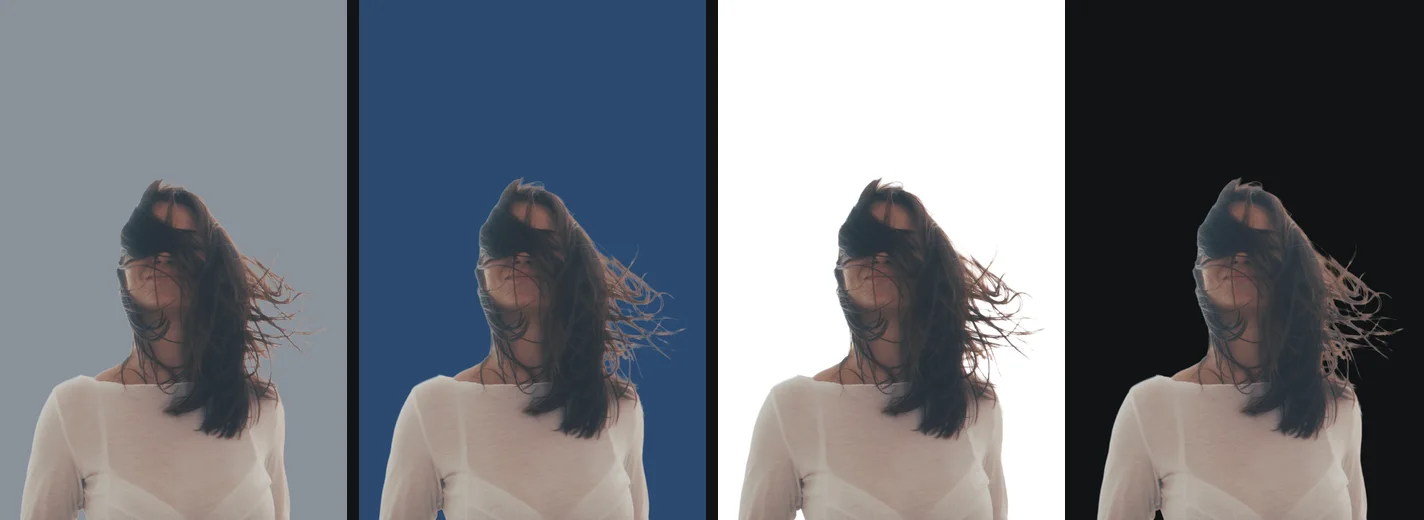
LinkedIn’s advice is short: avoid distracting backgrounds so the focus stays on your face. That leaves you a lot of freedom, and a few choices work better than others.
Mid grey. The safest background there is. It contrasts with dark and light hair, with white shirts and dark jackets, and it looks the same in LinkedIn’s light and dark modes. Something around #8A8F96 to #B7BBC0 reads as grey without looking like a passport photo.
Muted blue or blue grey. Calm and corporate, and it matches LinkedIn’s own palette without clashing. Keep it desaturated; a bright royal blue competes with your face.
Off-white or very light grey. Clean, but it needs dark hair or dark clothing to separate from. Blond or grey hair against off-white disappears at the edges, especially at the thumbnail size LinkedIn uses in comments.
A soft colour that matches your field. A warm sand for a designer, a deep green for someone in sustainability. It works when it is muted and when your clothes are not the same colour.
What to avoid: bright saturated colours that tint your skin, patterns, text, logos of former employers, other people’s shoulders, and pure black, which makes dark hair and dark jackets merge into one shape.
The headshot background guide goes through colour choice in more depth, including how hair colour and clothing change the right answer.
How to change the background of a LinkedIn photo for free
If you already like the photo and only the background is wrong, you do not need a reshoot. You need a cutout of yourself on a plain colour, saved as a normal JPG or PNG.
1. Start from the original file
Use the photo straight from the camera or phone, not a copy that went through WhatsApp or a social network, which shrink and compress it. The edge of your hair is only as good as the pixels in the file.
2. Remove the background
Open getPNG and drop the photo on the page, choose it, or paste it. The AI model finds you, and the edge is then refined against the full-size photo, so the cutout keeps the resolution of the original. A 12-megapixel photo comes back as 12 megapixels.
3. Put a colour behind you
Pick a background colour. The preview shows the cutout over that colour straight away, so you can try grey, blue and off-white one after the other and see which one suits your hair and clothes.
4. Check the edge in the compare view
Open the compare view and drag the divider across your hair and shoulders. You are looking for two things: a thin pale line around you (a halo left from the old background) and wisps of hair that were cut off. If there is a halo, use Edge shift to pull the outline in by one or two pixels. If the edge looks hard and cut out, add a little Feather. Both apply instantly without running the model again. The guide to white halos around a cutout explains why they appear.
5. Save as JPG or PNG with the colour
Choose JPG for the smallest file, or PNG if you want it lossless and it stays under 8 MB. Do not upload a transparent PNG to LinkedIn: LinkedIn does not document what it shows behind transparent pixels, and a photo that looks fine on white can look odd in dark mode. A colour you chose is a colour everyone sees.
6. Upload and frame it
Upload it in LinkedIn as described above, zoom until your face fills roughly 60% of the circle, and save.
The free way
Swap the background, keep your face on your device
Drop your photo on getPNG, pick a grey or blue background, check the hair in the compare view and save a JPG at the full size of the original. No account, no watermark, no upload.
Why the privacy of this photo matters
A profile picture is public once you post it, so it is easy to think it does not matter where you edit it. It does, for two reasons. First, the file you edit is usually not the public one: it is the full-resolution original, with location and camera data in it, often from a set of personal photos. Second, many online background removers upload the photo to their servers and keep it for a while under their own terms, and a clear, well-lit photo of a face is exactly the kind of image that is valuable to collect.
getPNG does the work in your browser: the photo is never sent anywhere, and after your first picture the tool works with the connection switched off. If you want to know what other tools do with your photo, is it safe to upload photos online summarises the policies of the popular ones, and how to check a website is not uploading your photos shows how to test any site yourself.
Check the photo at LinkedIn's real size
- Open your finished JPG and zoom out until it is about the size of a thumbnail, roughly 50 pixels across.
- Look at it next to a white area and a dark area of your screen.
- Squint slightly.
You should see: your face is still the first thing you notice, the outline of your hair is clear against the background, and nothing near the edge (a shoulder, a halo) draws the eye.
If you do not: if your hair melts into the background, pick a colour with more contrast; if there is a bright rim around you, pull the edge in by a pixel or two with Edge shift and save again.
Choosing the photo in the first place
A background swap fixes the background. It does not fix a photo that was wrong from the start, so a minute spent choosing is worth it. LinkedIn’s own tips, checked September 2026, line up with what photographers say:
- Recent. A photo from the last few years that looks like you do on a normal working day.
- Only you. A crop out of a group photo almost always shows a shoulder or a hand, and the resolution is often too low.
- Taken by someone else. A selfie at arm’s length distorts the nose and forehead. Ask someone to use the rear camera from a couple of metres away with a slight zoom.
- Soft light. A window on an overcast day is ideal. Direct sun makes hard shadows; overhead office lights make dark eye sockets.
- Sharp at full size. Zoom in on the eyes. If they are soft, no background will rescue the photo.
A good photo also makes a better cutout. Hair that is in focus and separated from the background by a little light gives the model clean edges to find. Hair that is blurred into a similar-coloured wall is hard for any tool, including a human with a brush.
When a background swap does not work well
Be honest with yourself about a few cases where the result will look edited:
- Fine flyaway hair against a busy background. The model keeps soft edges, which is what makes hair look natural, but those soft pixels still carry a little of the old background’s colour. Against a very different new colour you may see a faint tint. Pick a background close in brightness to the old one, or accept a slightly tighter edge with Edge shift.
- Glasses with the background showing through. The lenses show the old background. Nobody notices at thumbnail size, but it is visible in a large view.
- Light that does not match. If the original was lit by warm evening sun from one side, a cool, flat grey behind you looks pasted on. A warm grey or sand colour is more forgiving.
- Bits of the old scene that touch you. A hand on your shoulder or a chair back behind your neck may be kept as part of you. getPNG has no brush to erase an area by hand yet, so for that case use an editor such as Photopea after the cutout, or pick a different photo.
If the result still looks pasted on after trying two or three colours, a reshoot against a plain wall near a window will take ten minutes and look better than any edit.
A quick checklist before you save
- PNG or JPG, under 8 MB, at least 400 x 400 pixels.
- Face about 60% of the frame after LinkedIn’s crop, room above the head.
- Plain background with clear contrast against hair and clothes.
- No halo when you zoom in on the hair.
- A solid colour behind you, not transparency.
- Visibility set as you want it in LinkedIn’s photo editor: the editor lets you choose who can see the photo.
If you use the same headshot on other sites, the guide to profile picture backgrounds covers Slack, Discord and others, where the crop and the treatment of transparency differ from LinkedIn.
The steps, in short
- Pick the right photo. Recent, just you, face to the camera, sharp at full size. A photo taken by someone else with the rear camera beats a selfie.
- Remove the background. Drop the photo on getPNG. It finds you, refines the edge against the full-size photo and shows the cutout in a few seconds.
- Choose a plain colour. Pick a background colour that contrasts with your hair and clothes: a mid grey, a muted blue or an off-white. Check the hair edge in the compare view.
- Save as JPG or PNG on that colour. Export a JPG or PNG with the colour behind you rather than a transparent PNG, so LinkedIn has nothing to guess about.
- Upload and crop in LinkedIn. Me, View profile, the camera icon, Upload photo. Zoom so your face fills about 60% of the circle, then Save photo.
Questions
What size should a LinkedIn profile picture be?
LinkedIn accepts profile photos from 400 x 400 to 7680 x 4320 pixels, up to 8 MB, in PNG or JPG (LinkedIn Help, checked September 2026). Anything from a modern phone is big enough. Upload the full-resolution file and let LinkedIn's crop step frame it, rather than shrinking it yourself first.
What is the best background for a LinkedIn photo?
A plain one that contrasts with your hair and clothes. Mid grey works for almost everyone, a muted blue looks calm and corporate, and off-white suits light clothing on dark hair. Avoid pure white if you have blond or grey hair, and avoid anything with text, other people or strong patterns.
Can I upload a transparent PNG to LinkedIn?
LinkedIn accepts PNG files, but it does not document what it puts behind transparent areas, and that can change between the site, the apps and dark mode. Upload a PNG or JPG with a solid colour already behind you, so the picture looks the same everywhere.
Is the LinkedIn background photo the same as the profile photo background?
No. The background photo (also called the cover image) is the wide banner across the top of your profile, recommended at 1584 x 396 pixels. The background of your profile photo is what is behind you inside the circle. This guide is about the second one.
Why is my LinkedIn photo blurry?
Usually the source was small: a screenshot, a crop of a group photo, or an image sent through a messaging app that compressed it. Start from the original file, keep it above 400 x 400 pixels after cropping, and zoom less in LinkedIn's editor.
Is it safe to use an online background remover for my profile photo?
It depends on the tool. Most online removers upload your photo to their servers, so read their privacy policy. getPNG runs in your browser and the photo is never sent anywhere, which you can check in the browser's network tab.