Short answer
To remove a background in Canva, select the photo and click BG Remover in the editor toolbar, then fix spots with the Erase and Restore brushes. Canva's background remover is only on paid plans, and so is downloading a PNG with a transparent background. On the free plan, cut the photo out elsewhere, upload the transparent PNG, and design with it: Canva keeps the transparency of an uploaded PNG.
To remove a background in Canva, you select the photo and click BG Remover. That is the whole trick, and it works well, but only if you pay: Canva’s background remover is a paid plan feature, and so is the switch that downloads a design with a transparent background. If you are on the free plan and the button asks you to upgrade, you have not missed a setting. This guide covers both sides: the steps on a paid plan, with the limits Canva states in its own help centre, and what actually works on the free plan.
Everything here was checked against the Canva Help Center on 16 September 2026. Canva changes its toolbar often and rolls out interface changes gradually, so a label may sit in a slightly different place on your screen.
Is Canva’s background remover free?
No. The Canva help article on removing backgrounds says plainly that Background Remover is included with paid plans. The same goes for downloading with a transparent background, which Canva lists as available on Pro, Teams, Business, Education and Nonprofits plans.
That gives four situations.
| Your plan | Remove a background in Canva | Download a transparent PNG from Canva |
|---|---|---|
| Canva Free | No | No |
| Pro trial (if offered) | Yes, while the trial lasts | Yes, while the trial lasts |
| Pro, Teams, Business | Yes | Yes |
| Education, Nonprofits | Yes | Yes |
Two things are often confused here. Removing the background makes the area around the subject empty inside your design. Downloading with a transparent background is what keeps it empty in the file you save. You can have the first without the second only in one direction: on the free plan, an uploaded PNG that is already transparent stays transparent inside your design, but the design you download still gets a background.
How to remove a background in Canva on a paid plan
In the editor (desktop and mobile)
- Select the photo in your design. Click the photo itself, not a frame around it or the page.
- Click BG Remover in the editor toolbar. On mobile, it is in the toolbar along the bottom when the photo is selected.
- Wait while the background is processed.
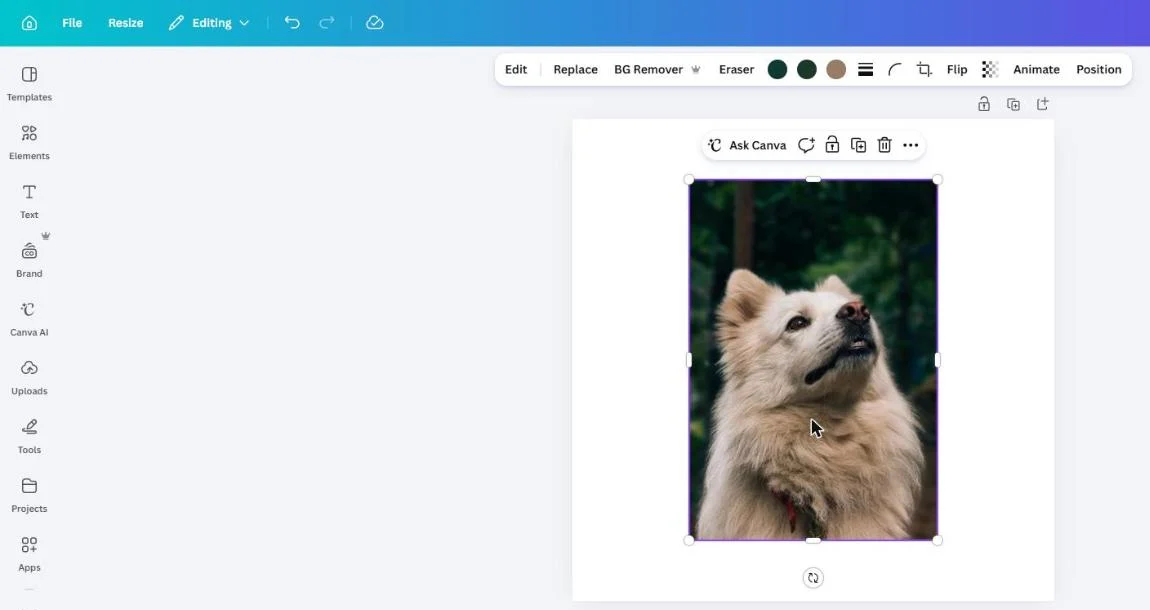
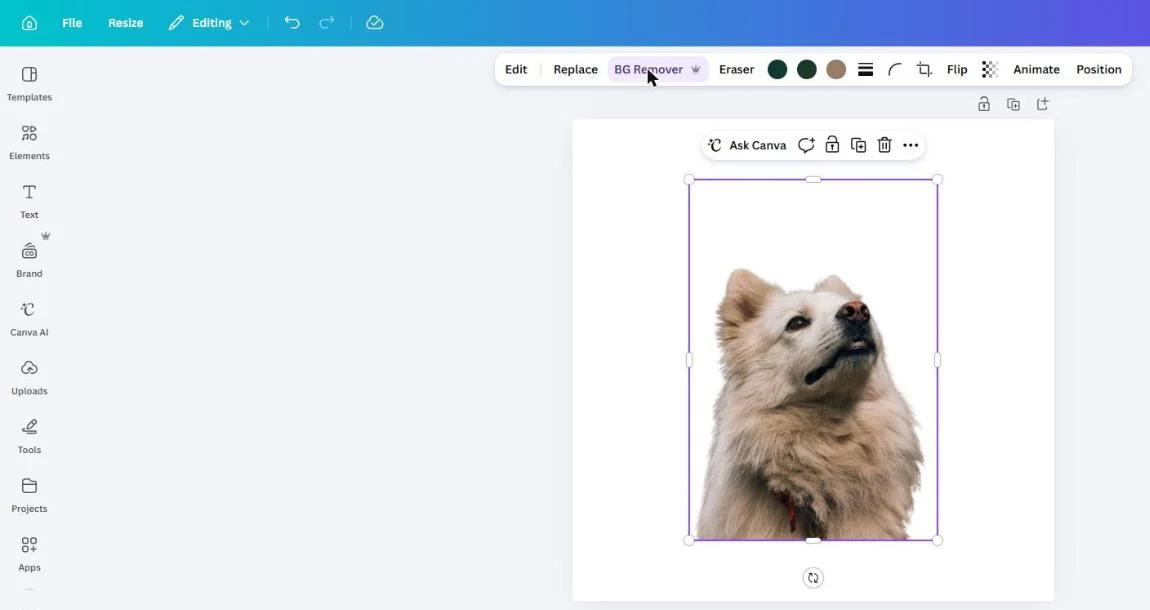
The result replaces the photo in your design. The subject now floats on whatever is behind it on the page.
Fix what the AI got wrong with Erase and Restore
The automatic result is good on a clear subject and weaker where the subject and background share colours, or where there are gaps such as the space between an arm and a body.
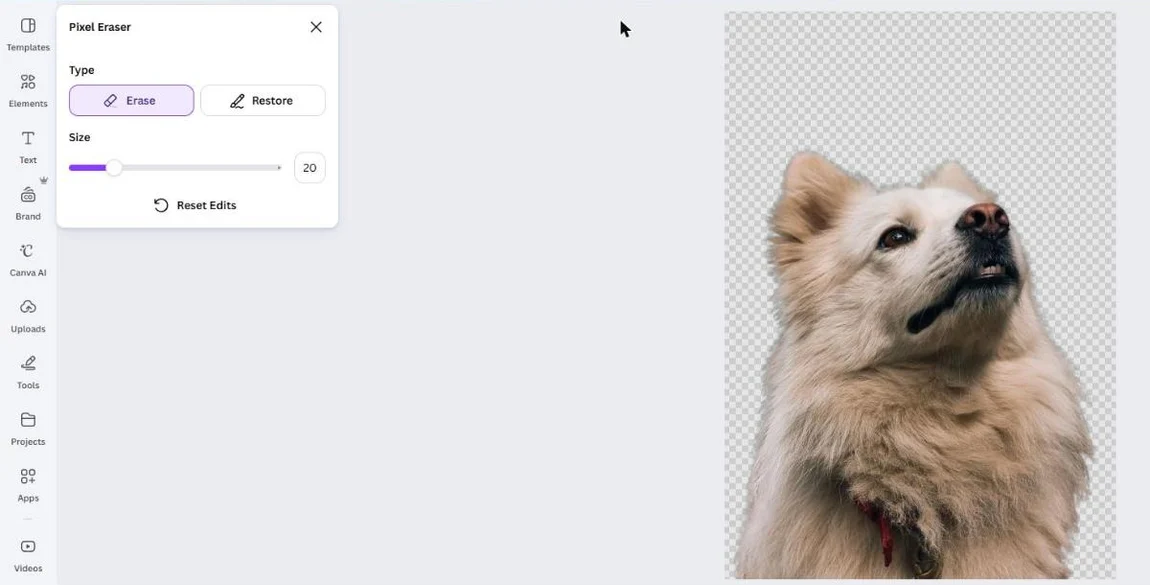
- With the photo still selected, select BG Remover again.
- Choose the Erase brush to remove leftover background, or Restore to bring back part of the subject that was cut away.
- Set Size with the slider. A smaller brush for edges, larger for patches.
- Drag over the area.
- Reset Edits throws away every brush stroke and goes back to the automatic result.
When we checked on 16 September 2026 the panel was called Pixel Eraser and held only Erase, Restore, Size and Reset Edits: the Show original image switch and the undo icons that Canva’s help article describes were not there. Zoom in before you start brushing, and work in small strokes, because Reset Edits undoes everything at once.
Without opening a design
You can also remove a background straight from your uploads. From the homepage, go to Projects, then Images, hover over the photo, select the More icon, choose Edit image, and under Tools choose BG Remover.
For a batch, open Projects, hover over a folder, select More and choose Remove background. Canva processes each uploaded photo and puts the results in a new folder named after the original with “Edited” added, leaving the originals alone. A folder can hold at most 50 images for this, and photos from Canva’s library are skipped.
Limits Canva states for BG Remover
These come from Canva’s own help article, and they matter more than they look.
- Photos under 9 MB only. A large camera JPG or a high-resolution PNG can exceed this.
- Not for vector images. An uploaded SVG will not work.
- Downscaled to 10 megapixels. A photo with more than 10 megapixels is downscaled to 10 megapixels after its background is removed. A 12-megapixel iPhone photo loses a little; a 24-megapixel camera photo loses more than half its pixels. For a social post that rarely shows; for print, a product catalogue or a large banner it can.
- Folder batches of 50 images at most, one folder at a time.
- An internet connection is required, because the processing happens on Canva’s side.
How to make a background transparent in Canva and download it
Removing the background from a photo is not enough for a transparent file. The page itself also has a background, white by default, and it has to be out of the way.
- Clear the page background. Select the background and delete it with the trash icon, or set the background colour to white. Canva treats a white page background as transparent when this option is on.
- Go to Share, then Download.
- Choose PNG as the file type. JPG cannot hold transparency, and the switch does not appear for it.
- Set the Size and Quality.
- Turn on Transparent background.
- For a multi-page design, choose All, This Page or Custom pages.
- Click Download.
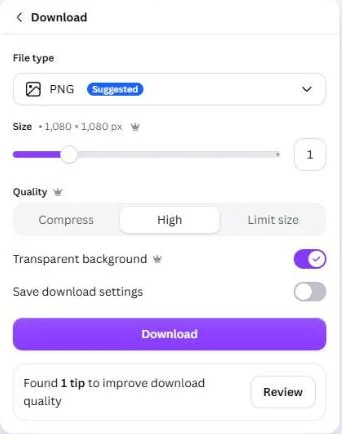
Canva’s help centre adds that transparent downloads are not possible from Canva Docs.
Check the download is really transparent
- Open the PNG you downloaded in a new browser tab (drag it onto the tab bar).
- Switch the browser or your system to dark mode, or open it in an app with a dark background.
You should see: the page colour, or the dark background, showing all around the subject, with no white rectangle.
If you do not: a white box means Transparent background was off, the design still had a coloured background or a background photo, or the file was saved as JPG. Fix the one that applies and download again. If the file is transparent here but white somewhere else, the other app is flattening it: see why a PNG shows a black or white background.
What the free plan can do instead
On Canva Free, you cannot remove a background with Canva’s tool, and you cannot download a design with a transparent background. You can still get a cutout into your designs.
Upload a PNG that is already transparent
Canva keeps the transparency of an uploaded PNG. So the free route is to make the cutout first, anywhere, and upload it:
- Remove the background with another tool and save a transparent PNG.
- In Canva, open Uploads and upload the file. Canva takes JPEG, PNG, HEIC/HEIF and static WebP files under 50 MB. Of those, PNG and WebP are the ones that normally carry transparency.
- Drag it into your design. It sits on the page with nothing behind it, so text, colours and other photos show around the subject.
This is how most free users make YouTube thumbnails, posters and social posts with a person cut out of their original photo. The YouTube thumbnail guide walks through that layout.
Download on a colour, not on transparency
If what you need at the end is a finished design, a thumbnail, a post, a flyer, you do not need a transparent download at all. The cutout sits on your chosen background colour or photo, and a normal PNG or JPG download on the free plan includes that background. Transparency only matters when the file itself has to go on top of something else later, like a logo placed on a website or a sticker on a video.
When the free plan genuinely is not enough
If you need a design downloaded with nothing behind it, for example a logo with text you built in Canva, there is no free way to get that file out of Canva. Either use a paid plan for that download, or build the transparent part outside Canva.
What the transparency slider does, and does not
The Transparency control in Canva’s toolbar makes the whole selected element see-through, subject included. It is useful for a faded photo behind text. It does not remove a background, and a cutout will not appear from it however far you drag it.
Does Canva upload your photo? What happens to it
Canva is a cloud editor, so the answer is yes, and it is worth knowing what that means before you remove the background from a photo of your children, a customer’s product or an ID document.
- Everything you add to a design is uploaded and stored in your Canva account. The free plan includes 5 GB of storage for this, which is why uploads stay available across devices.
- BG Remover works on Canva’s side. Canva’s help page tells you to check your internet connection if the remover is not loading; the picture has to reach Canva for it to work.
- AI training is a setting. Canva’s privacy policy (last updated 25 August 2026) says Canva may use your content and media uploads to train its models, and that you manage this in your privacy settings. To find it: select your profile icon on the homepage, choose Your account, then Privacy controls, and use the toggles. Canva says it does not use content from Canva Education for AI training.
- Apps are separate companies. Background tools in Canva’s Apps Marketplace are made by third parties, and Canva’s policy says their own terms and privacy policies apply. Using one means your picture goes to that developer as well.
None of this is unusual for an online design tool, and for most social media graphics it is a reasonable trade. For a photo you would rather keep on your own device, remove the background before it goes anywhere near an upload. The guide on whether it is safe to upload photos online compares what the popular services say they do with them.
The free way
Make the cutout first, then upload only the PNG
Drop the photo on getPNG, download the transparent PNG, and upload that to Canva instead of the original. The background removal is free, the PNG keeps the full resolution of your photo rather than 10 megapixels, and it works the same on a free Canva plan, because Canva keeps an uploaded PNG’s transparency. There is no brush yet for fixing a missed patch, so for that step use Canva’s own tools or an editor.
Canva background remover troubleshooting
BG Remover asks me to upgrade. You are on the free plan. There is no free switch for it.
The button is greyed out. Check the photo is under 9 MB and is not an SVG or other vector. Make sure you selected the photo, not a frame, a grid cell or a graphic.
Part of the subject is gone. Use the Restore brush with Show original image on. Hands holding an object, and thin items like glasses arms, are the usual casualties.
Background patches left between arms or legs. The Erase brush, with a small brush size, zoomed in before you enter the mode.
A pale outline around the subject on a dark design. That is background colour mixed into the edge pixels. Erase a hair’s width along the edge, or see the white halo guide for why it happens.
The downloaded PNG has a white background. Transparent background was off, the page still had a colour or photo, or you picked JPG. Also check that you are not in a Canva Doc.
The cutout looks soft when printed. The photo was probably over 10 megapixels and was downscaled. Make the cutout at full resolution elsewhere and upload that PNG.
A video background. Canva’s BG Remover also works on videos under 10 minutes in original length, on paid plans. A video trimmed inside Canva has to be downloaded and uploaded again first.
Canva compared with other apps
If you design in Figma instead, removing a background in Figma has the same paid-plan catch. Photopea is a free browser editor with its own remover, with a catch of a different kind. The full table of apps, which ones charge and where each sends your picture, is in removing a background in any app.
Canva also takes SVG uploads, which matters when the picture is a logo rather than a photo, though it recolours only the ones that meet its rules and it has no tracer of its own. getSVG’s SVGs in Canva covers the rules and the way round them.
The steps, in short
- Select the photo. Click the photo in your design so the editor toolbar shows the image options.
- Click BG Remover. Choose BG Remover in the toolbar and wait while Canva processes the photo. It needs a paid plan and an internet connection.
- Refine with Erase and Restore. Select BG Remover again, pick Erase or Restore, set Brush size and paint over what is wrong. Show original image helps you compare.
- Remove or whiten the page background. Delete any background colour or image in the design, or set the page colour to white, which Canva treats as transparent on export.
- Download a transparent PNG. Share > Download, choose PNG, turn on Transparent background, then Download. This option is also paid only.
Questions
Can you remove a background in Canva for free?
Not with Canva's own tool. As of September 2026, Canva's help centre lists Background Remover as a paid plan feature. On the free plan you can upload a PNG that is already transparent and design with it, or start a Pro trial if your account is offered one.
How do I make a background transparent in Canva?
Delete the page background or set it to white, then Share > Download, choose PNG and turn on Transparent background. The switch only appears on paid plans (Pro, Teams, Business, Education and Nonprofits), and it does not work for Canva Docs.
Why is the BG Remover button greyed out or missing?
The most common reasons are a free plan, a photo over 9 MB, or a vector image such as an SVG, which the remover does not handle. Check that you selected a photo rather than a frame, a graphic or the page background.
Does Canva's background remover reduce the resolution?
It can. Canva's help centre says a photo over 10 megapixels is downscaled to 10 megapixels after its background is removed. A 24-megapixel camera photo therefore comes back at less than half its original pixel count.
Is my photo uploaded when I remove a background in Canva?
Yes. Canva is a cloud editor: everything you add to a design is uploaded and stored in your Canva account, and the remover works on Canva's side, which is why its help page tells you to check your connection if it does not load. Canva's privacy policy covers AI training, which you can switch off in Privacy controls.
Why does my Canva download still have a white background?
Either Transparent background was off, the file type was JPG, or the design still has a background colour or image. Set the page to white or delete the background, pick PNG, and turn the switch on.