Short answer
A sticker PNG is a cutout on a transparent background, so it sits on any chat or surface without a white box. To make a sticker from a photo, cut the subject out, then finish it for where it is going. On iPhone, Photos can do it alone: touch and hold the subject, then Add Sticker. For a WhatsApp sticker pack, WhatsApp's specification asks for 512 x 512 pixel WebP files of 100 KB or less. For printed stickers, add a white outline in an editor and send the PNG to a print or cutting service.
A sticker PNG is just a cutout with nothing around it: the subject on a transparent background, often with a white outline. To make a sticker from a photo you need two things: the subject cut out onto a transparent background, and a finish that suits where the sticker will live. A sticker in iPhone Messages, a sticker pack in WhatsApp and a vinyl sticker on a laptop all start from the same cutout and then go in different directions: different sizes, different formats, different file size limits, and an outline that some need and some do not. This guide covers all three, with the official rules from Apple and WhatsApp checked in September 2026, and is clear about which steps getPNG does and which need another app.
Three kinds of sticker, one sticker PNG
| Destination | What it needs | Format | Where the outline comes from |
|---|---|---|---|
| iPhone Messages and Markup | A subject lifted from a photo | Made by Photos | Add Effect, Outline |
| WhatsApp sticker pack | 512 x 512 pixels, 100 KB or less, 3 to 30 per pack | WebP (Android), PNG or WebP (iOS) | Drawn by you; WhatsApp recommends an 8 pixel white stroke |
| Printed or cut vinyl sticker | Real size at about 300 pixels per inch, a bleed or outline | PNG, sometimes SVG or PDF | Drawn by you in an editor or by the print service |
The cutout is the part that decides whether the sticker looks good. A hard, jagged edge or a pale fringe from the old background shows far more on a sticker than in a photo, because stickers sit on chat bubbles, dark mode, and bright laptop lids.
Step 1: pick a photo that makes a good sticker
- One clear subject. A face, a pet, a mug, a plant. Two people hugging make one sticker; a crowd makes none.
- A visible outline. The subject should contrast with the background. A black cat on a dark sofa is hard for any tool.
- Nothing overlapping. A lead across the dog, a hand in front of the face and a cup handle behind someone’s head all become part of the shape or holes in it.
- Sharp and well lit. Motion blur at the edges turns into a smeared outline.
- Room around it. Ears, tails and hair cut off by the edge of the photo will be cut off on the sticker.
Step 2: cut out the subject
On an iPhone, in Photos
iPhone can do the cutout and the sticker in one go. From Apple’s guide to making stickers from your photos (iOS 27, checked September 2026):
- Open the photo in Photos and tap it to view it full screen.
- Touch and hold the subject, then release.
- Tap Add Sticker.
- Tap Add Effect to apply an effect such as Outline or Comic. A Live Photo becomes a moving sticker, and you can turn the animation on or off here.
The sticker appears in the stickers menu of the keyboard and Markup, so you can use it in Messages, Notes and elsewhere. Apple says stickers sync with iCloud to your iPhone, iPad, Mac and Apple Vision Pro signed in to the same Apple Account, which is useful, and worth knowing if the photo is private. Removing a background on iPhone covers the same lift-subject feature for other uses.
The iPhone route is quick, and it stays inside Apple’s sticker menu. When you want a file (for WhatsApp packs, printing, or a sticker on Android or a computer), you need a transparent PNG instead.
Anywhere else, as a transparent PNG
- Open getPNG and drop the photo on the page, choose it, or paste it.
- The model finds the subject, and the edge is refined against the full-size photo, so the cutout keeps the resolution of the original. That matters for printed stickers, where every pixel ends up on paper.
- Download the transparent PNG, or a WebP with transparency if the sticker is heading for WhatsApp.
getPNG reads HEIC, so iPhone photos can go in as they are, with no need to share them as JPEG first.
Step 3: check the edge like a sticker
A sticker is seen on light and dark backgrounds, so check both.
Check the sticker edge in one minute
- In getPNG, set the preview background to white and zoom in on the outline.
- Switch the preview background to black and look at the same area.
- Open the compare view and drag the divider along the subject to see whether anything was cut off.
You should see: a clean outline on both white and black, with no pale or dark rim, and ears, fur or hair still there when you compare with the original.
If you do not: if a rim shows on one of the two, pull the outline in by one or two pixels with Edge shift; if the edge is jagged, add a little Feather; if a part of the subject is missing, try a photo with more contrast around that part.
A white outline added in the next step hides small edge faults, which is one reason printed stickers almost always have one. The guide to white halos around a cutout explains where rims come from.
The free way
Cut out the sticker subject without an app
Drop the photo on getPNG, check the edge on white and black, and save a transparent PNG or WebP at full resolution. It works on a phone or a computer, with no account and no watermark.
Step 4: add a white outline (in another app)
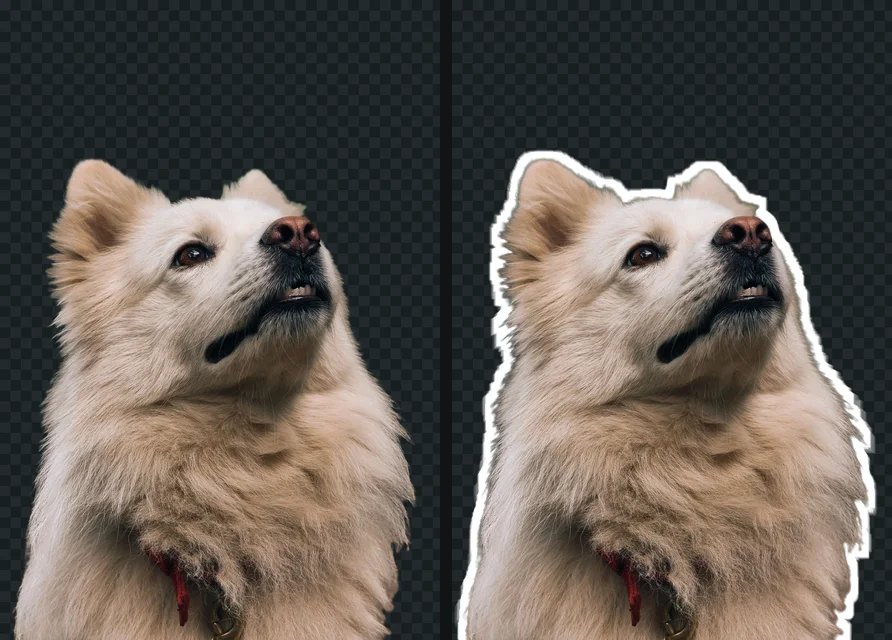
The white border is what makes a sticker look like a sticker, and it is practical: it separates the subject from any chat background and hides a slightly imperfect edge. getPNG does not add outlines, so use one of these:
- iPhone Photos: Add Effect, Outline, as above.
- Photopea (free, in the browser): open the transparent PNG, double-click the layer to open its layer styles, add Stroke, set the colour to white and choose a thickness. Photopea’s privacy policy (checked September 2026) says files opened in it never leave your device. Make the canvas slightly larger first (Image, Canvas Size) so the stroke is not clipped at the edges.
- Canva: select the image, then Effects, Shadows, Outline, and choose white. Canva is a cloud editor: images you add are stored in your Canva account.
- GIMP: select the layer’s opaque area (Alpha to Selection), grow the selection by the outline width, fill it with white on a new layer below the cutout.
How thick? WhatsApp’s sticker guidelines recommend an 8 pixel white stroke on a 512 pixel sticker. For printed stickers, 2 to 4 mm at the printed size is typical, and the print service may add its own.
Making WhatsApp stickers
There are two different things called “WhatsApp stickers”, and they have different rules.
Stickers just for you: WhatsApp’s custom sticker maker
WhatsApp has a built-in sticker maker. Its announcement from 14 August 2024, Express yourself with more stickers, says it came to Android after iOS, turns photos into stickers, and offers crop, text and draw tools; the stickers are saved in your sticker tray. That is the easiest route for a one-off sticker. A clean transparent PNG made first gives the sticker maker a better starting point than a photo with a busy background.
Sticker packs: WhatsApp’s specification
To publish a pack others can add, stickers have to be packaged in an app, following WhatsApp’s official sticker specification on GitHub for Android and iOS, checked September 2026:
- Exactly 512 x 512 pixels per sticker, with a transparent background.
- WebP on Android; PNG or WebP on iOS (animated stickers WebP only).
- 100 KB or less per static sticker, 500 KB for animated ones.
- 3 to 30 stickers in a pack, static or animated but not mixed.
- A tray icon of 96 x 96 pixels, 50 KB or less.
- A white stroke of 8 pixels is recommended, because stickers appear on white, black, coloured and patterned backgrounds.
Getting from a cutout to that:
- Make it square. getPNG keeps the original photo dimensions and has no square canvas. In an editor, create a 512 x 512 canvas, place the cutout with a little transparent margin on every side (the stroke needs room), and add the outline.
- Export WebP. Photopea and GIMP both export WebP with transparency.
- Get under 100 KB. A 512 x 512 WebP with a photo in it is often over the limit at full quality. Lower the export quality a step at a time until it fits and still looks clean. WhatsApp’s own guidance suggests exactly this, or reducing colours in the PNG first. Reducing a PNG’s file size and PNG vs WebP explain the trade-offs.
Printed stickers
For a sticker on paper or vinyl, resolution and outline matter more than file size.
- Resolution. About 300 pixels per inch at the printed size. A 3 inch (76 mm) sticker needs around 900 pixels across; a 12 megapixel phone photo gives far more than that. Keep the full-resolution cutout.
- Outline and cut line. A die-cut sticker is cut along a line just outside the image. Most print services add that line from a transparent PNG, often with an option for a white border. Add your own outline in an editor if you want control over its width.
- Format. PNG with transparency is what most services ask for.
- Cutting at home. Cutting machines such as Cricut work from a print and a cut line. getSVG’s guide to print-and-cut stickers covers that workflow.
When a photo does not make a good sticker
- Fur and flyaway hair. The cutout keeps soft, semi-transparent edges, which look natural in a photo. On a 512 pixel WhatsApp sticker compressed to 100 KB, fine fur turns to noise. A thicker white outline covers it.
- Low contrast subjects. A white dog in snow or a grey mug on a grey table leaves little outline to find. Reshoot on a contrasting surface.
- Things that should be holes. The gap between an arm and a body, or the inside of a mug handle, may keep a patch of old background. getPNG has no brush to erase that by hand yet; remove it in Photopea or GIMP.
- Screenshots of stickers. A screenshot is a flat picture on the chat background, not a sticker. Always start from the original photo or the exported file.
A note on privacy
Stickers are often made from the most personal photos: children, partners, pets, friends at a party. Many sticker maker apps and websites upload the photo to process it. getPNG does the cutout in the browser and the photo is never sent anywhere; after your first picture it even works with the connection off. On iPhone, the sticker itself syncs through iCloud, as Apple’s guide notes. If you use other online tools, how to check a website is not uploading your photos shows what to look for.
The steps, in short
- Pick a photo with a clear subject. One person, pet or object, sharp, with a visible outline and nothing overlapping it.
- Cut out the subject. Drop the photo on getPNG and download a transparent PNG at full resolution, or use Add Sticker in Photos on an iPhone.
- Check the edge on dark and light. Stickers are seen on every kind of chat background. Pull in any fringe with Edge shift and soften hard edges with Feather.
- Add an outline if you want one. In an editor such as Photopea or Canva, add a white stroke around the cutout. WhatsApp's own guidelines recommend an 8 pixel white stroke.
- Size it for the destination. 512 x 512 pixels with margin for a WhatsApp pack; the real printed size at 300 pixels per inch for a printed sticker.
- Save in the right format. WebP under 100 KB for WhatsApp packs, PNG for printing and most other uses.
Questions
What is a sticker PNG?
A PNG image of a sticker with a transparent background: only the subject (and its outline, if it has one) is visible, and everything around it is empty. That is why it can sit on a chat bubble, a slide or a laptop mockup without a box. PNG is used because it keeps transparency and full quality; JPG cannot be transparent.
How do I make a sticker from a photo on iPhone?
In Photos, open the photo full screen, touch and hold the subject, release, and tap Add Sticker. You can then tap Add Effect for Outline or Comic, among others. Apple's guide says stickers sync through iCloud to your other Apple devices signed in to the same Apple Account (checked September 2026).
What size are WhatsApp stickers?
WhatsApp's sticker specification says each sticker must be exactly 512 x 512 pixels, a static sticker must be 100 KB or less, and a pack holds 3 to 30 stickers with a 96 x 96 pixel tray icon. Android packs must use WebP; iOS packs accept PNG or WebP (checked September 2026).
Can I make WhatsApp stickers from my own photos without an app?
Yes. WhatsApp has a built-in custom sticker maker that turns a photo into a sticker with crop, text and draw tools, available on iPhone and, since August 2024, Android. Sticker packs to share with others still have to be packaged in an app, following WhatsApp's specification.
How do I add a white border to a sticker?
getPNG does not add outlines, so use an editor. In Photopea, open the transparent PNG and add a Stroke layer style to the layer, in white. In Canva, select the image and use Effects, Shadows, Outline. On iPhone, Add Effect in the sticker menu has an Outline effect.
Why does my sticker have a black background?
It was saved or converted as JPG somewhere along the way, and JPG has no transparency, so the empty area was filled with black. Export as PNG or WebP with transparency, and share the file itself rather than a screenshot of it.
What resolution do printed stickers need?
About 300 pixels per inch at the printed size is the usual standard: a 3 inch (76 mm) sticker needs roughly 900 pixels across. A cutout at the full resolution of a phone photo is comfortably above that for normal sticker sizes.